¶ Introduction
The Inbound Management screen supports users create and manage the Inbound booking.
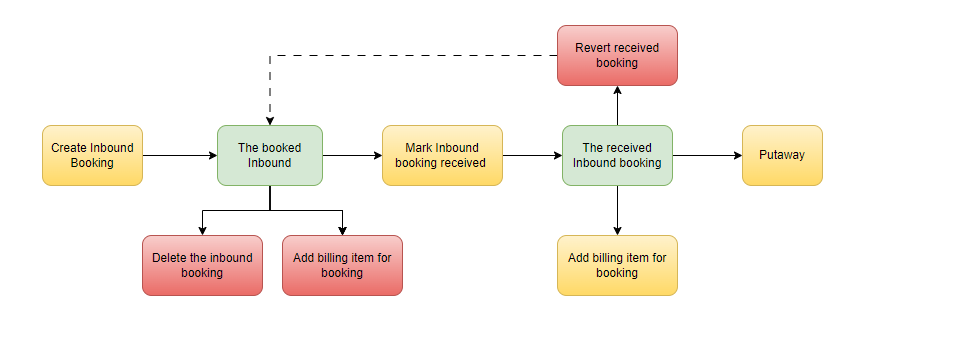
Inbound Process- Actions and Status in UI.
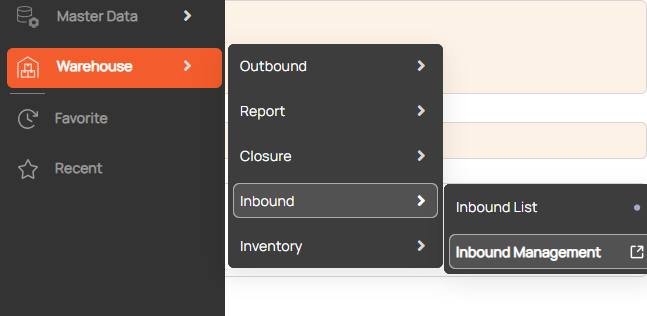
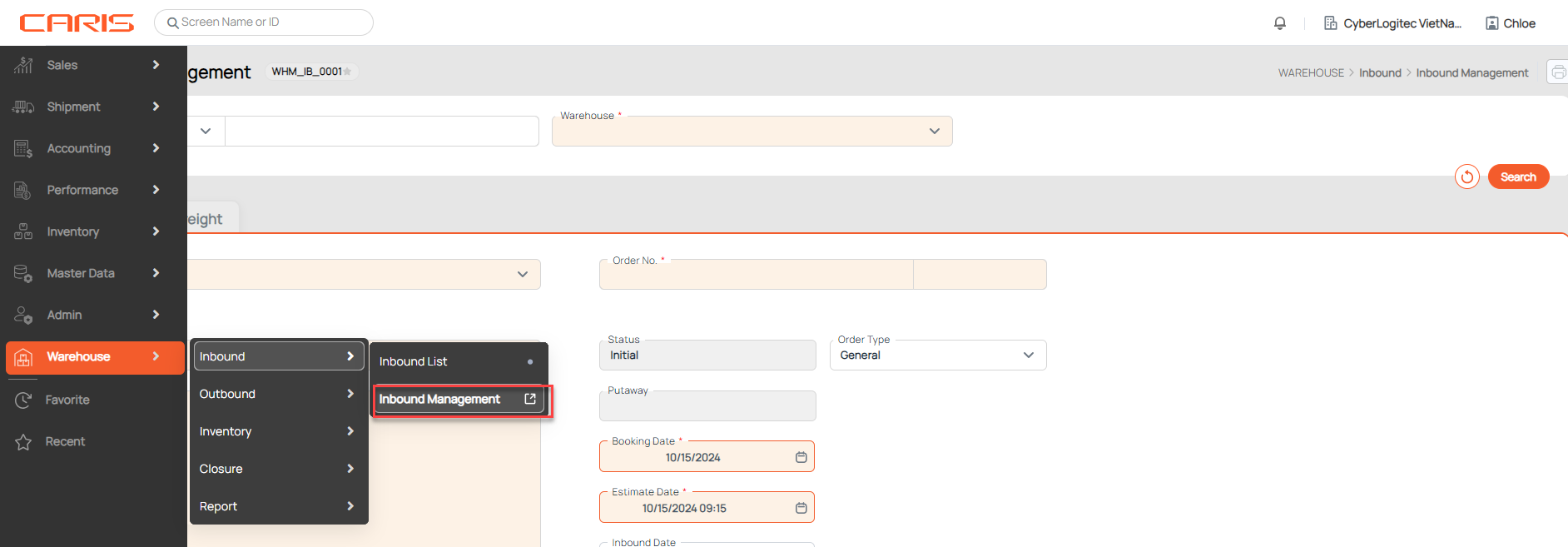
Navigation: Warehouse > Inbound > Inbound Management
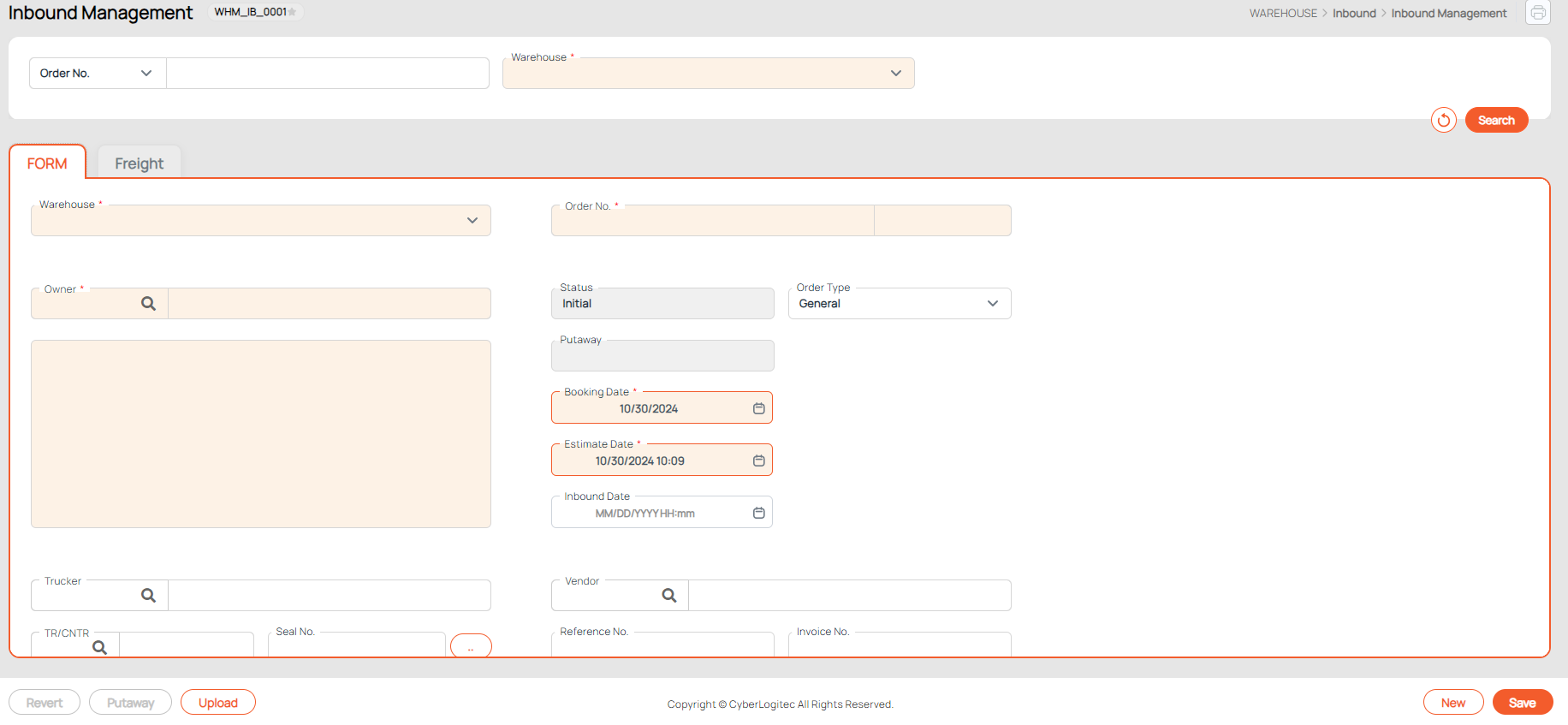
Screenshot
¶ Create an inbound booking
¶ 1. Open Inbound management screen with status is Initial
There are 2 ways:
- Open screen from side-bar menu: Warehouse > Inbound > Inbound Management
- Click New button to open screen with status is Initial
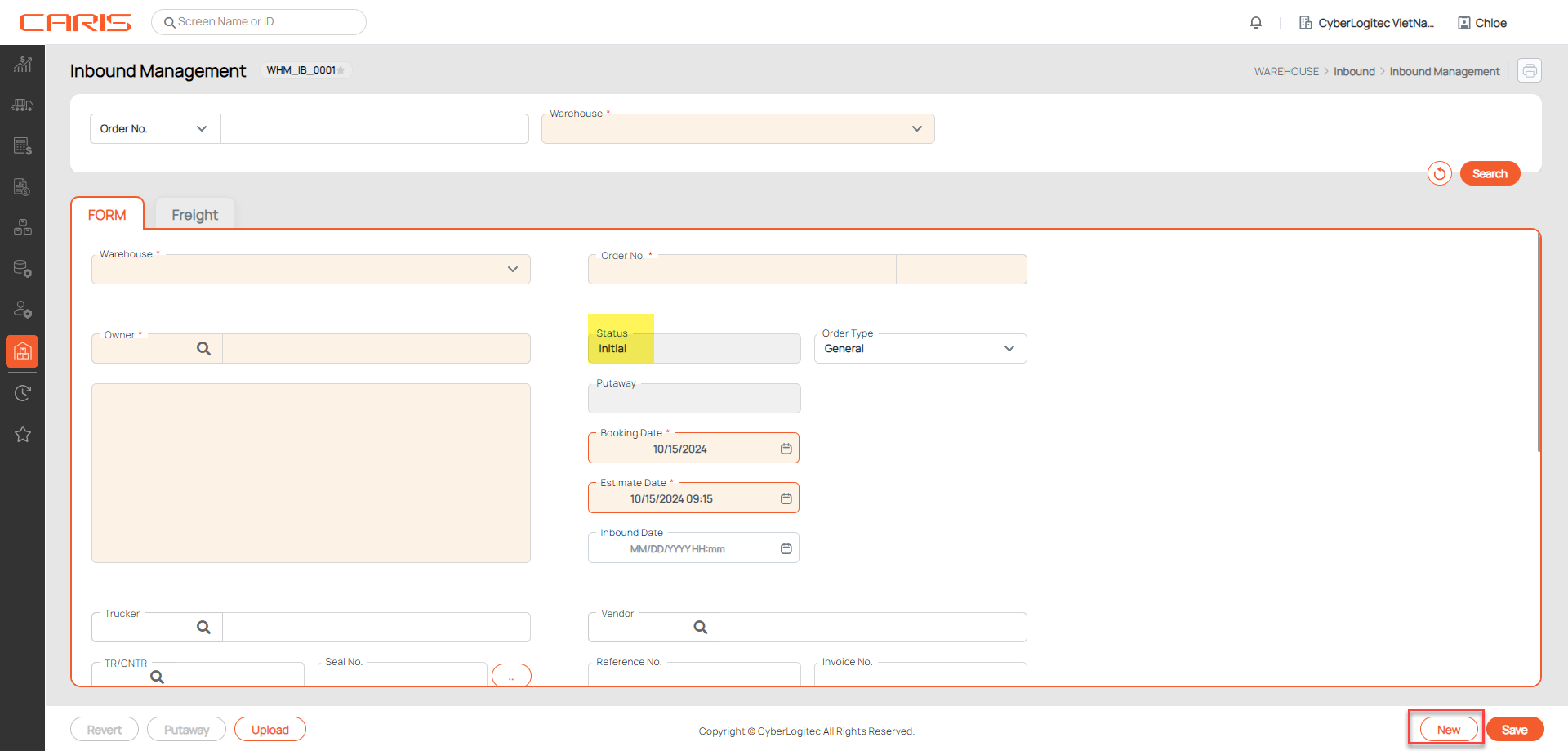
¶ 2. Enter information about a inbound booking
Note: Must be input required fields in FORM tab
- Enter Booking master information
- Click Add Row button and input booking item information in grid
Description of fields in the FORM tab
+ Booking master information: The user manages the task of inputting master information for booking.
- Booking No. : the code of booking. The system will automatically generate them for each inbound booking.
- Order No. : the code of order
- Warehouse: the warehouse name
- Owner: the name and address of the company.
- Status: the state of current Inbound booking. There are 4 kinds of status - Initial/ Booked/ Received/ Cancelled
- Putaway: The status indicates the amount of storage ( Partial/ Total ). Refer to more info at Manage Putaway status
- Booking Date/ Estimate Date: the inbound booking creation date/ the estimated inbound date
- Inbound Date: actual date when freight has arrived
- Order type:
- General: inbound stocks qty on the common purpose
- Return: inbound stocks for returning to retailers (damages, no log salable, expired products )
- Adjustment: inbound stocks are used for bridging the gap, between the actual and the expected quantity of product
- Cross dock: products or orders that are brought into the warehouse but not put away
- Sales: inbound stocks for sale
- Marketing: stocks used on marketing purpose
- Gift: inbound stocks for presenting purpose
- Sale Return: inbound for sale stocks to return to their acceptance places
- Marketing Return: inbound for marketing stocks to return to their acceptance places
+ Reference information: these are detailed data related to shipping document
- Trucker
- TR/CNTR: truck/ container number
- Seal No. : the number issued for a container after it was inspected and sealed. User can add the Seal No.
- D/O No. : delivery order number
- Vendor: the name and address of the true commodity supplier
- Invoice No. : invoice number of this booking
- Remark
+ Shipping information: the optional area for user to add the detail shipping data
- Master B/L, House B/L
- VSL/VOY: the code and name of a vehicle carrying consignments.
- Carrier: the carrier that handles shipping
- POL/ETD
- POD/ ETA
- DEL
+ Booking Item grid
- SKU (Stock keeping Unit )
- Contract No. : contract number of this item
- [UOM/ Qty/ Total ]: Qty is the quantity of items based on the unit of measure (UOM). Total is the quantity of items based on the handling unit in the contract.
- Item LOT: Item Lot is an identification code assigned to a particular type and quantity of items related to an assembly.
- LOT4, LOT5: the additional lots used to store products just in case. (optional)
- Expiration Date:
- Received [ UOM/ Qty/ Total ]: actual quantity when freight has arrived
- Estimated [ UOM/ Qty/ Total ]: the information on expected products
- Planned Transport: information truck/container of each item (for reference only)
- Serial No. : the number to identify individual pieces of items.
- LP No. (License Plate number): Unique identification labels for pallets
- PO No. : indicating the purchase order stocks belong to.
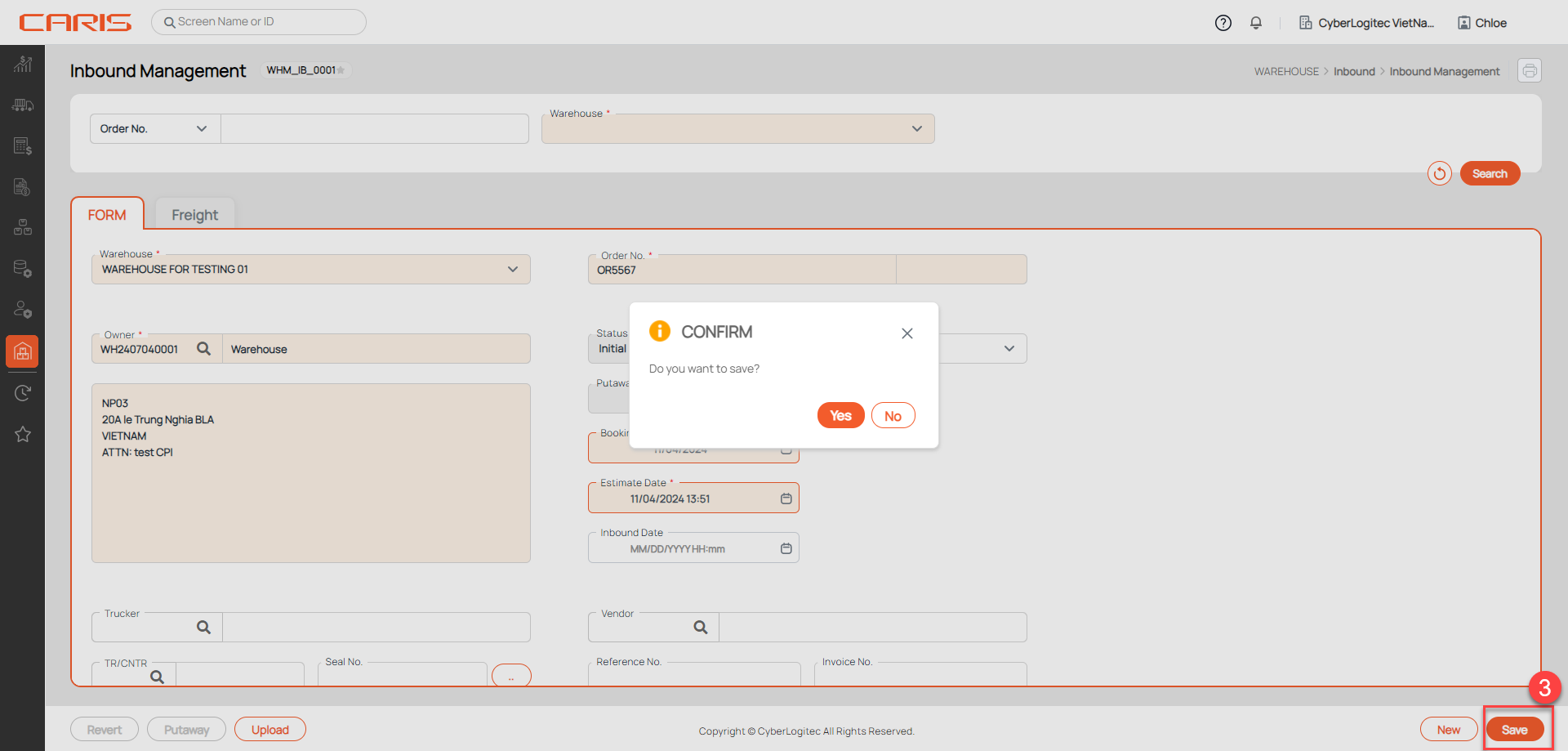
¶ 3. Click Save button
- After saving successfully Booking Status will update to Booked
¶ Management of the put-away status item
when the stocks are totally unloaded from the containers (the inbound is completed and the commodity shall be moved to the warehouse). The process of moving, handling, and locating consignment from inbound locations to its position for storage is called Put-away management.
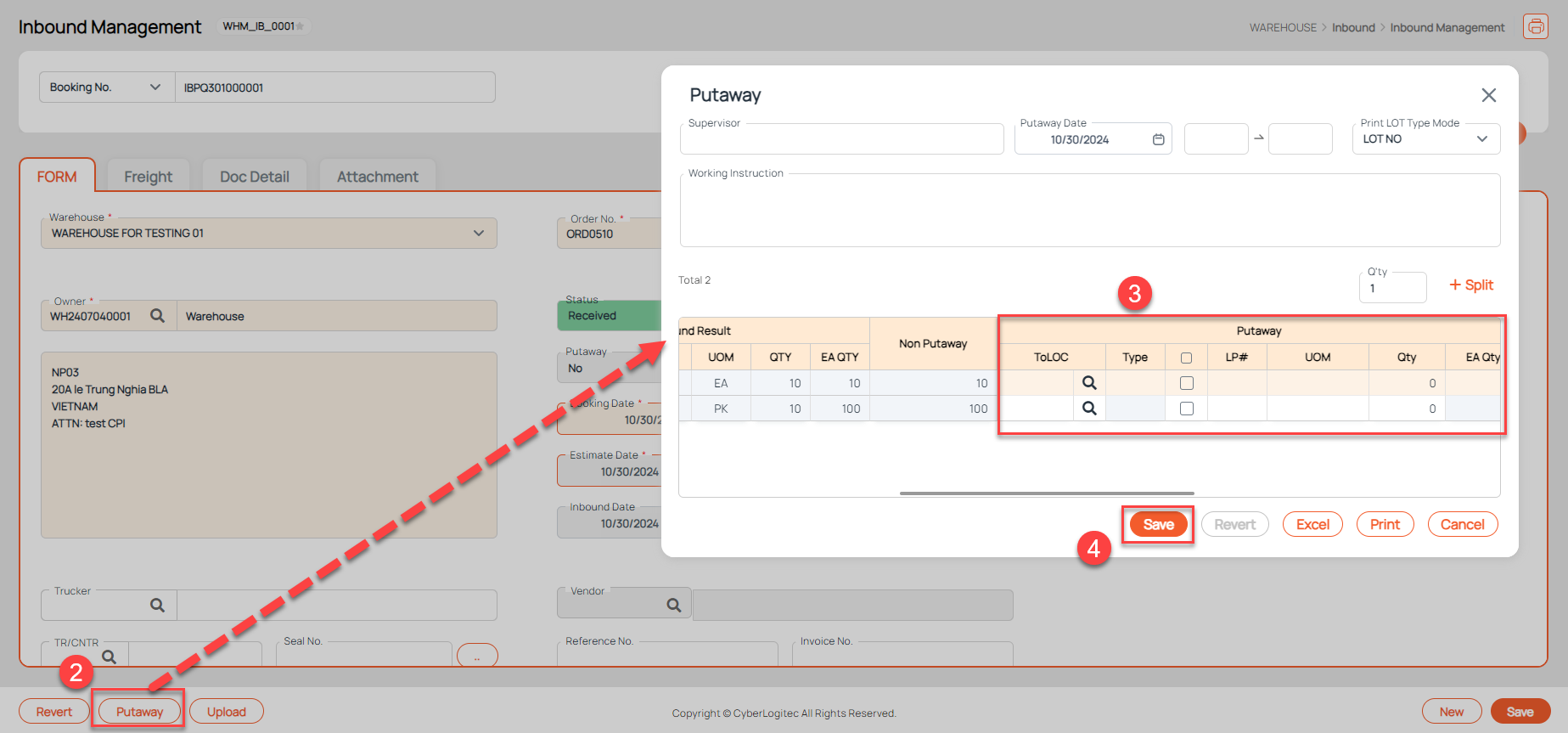
Step to add put-away information:
- Open the received inbound booking
- Click Putaway button, the system will open the Putaway popup
- Input Putaway information in the Putaway popup
- ToLOC / Type: the location chosen for storing Items and that location's type.
- LP# (License Plate number): Unique identification labels for pallets
- UOM, Qty
- Click Save button in the Putaway popup
- After saving successfully putaway status of booking will update.
List put-away status: Yes/ No/ Partial
- The put-away status is marked as 'Partial' when the quantity in the 'Non-Putaway' field exceeds 0 but is less than the total 'Inbound Result EA Quantity.'
- The put-away status is marked as 'Yes' when the quantity in the 'Non-Putaway' field is 0.
- The put-away status is marked as 'No' when the quantity in the 'Non-Putaway' field equals the total 'Inbound Result EA Quantity.
¶ Update booking status when receiving
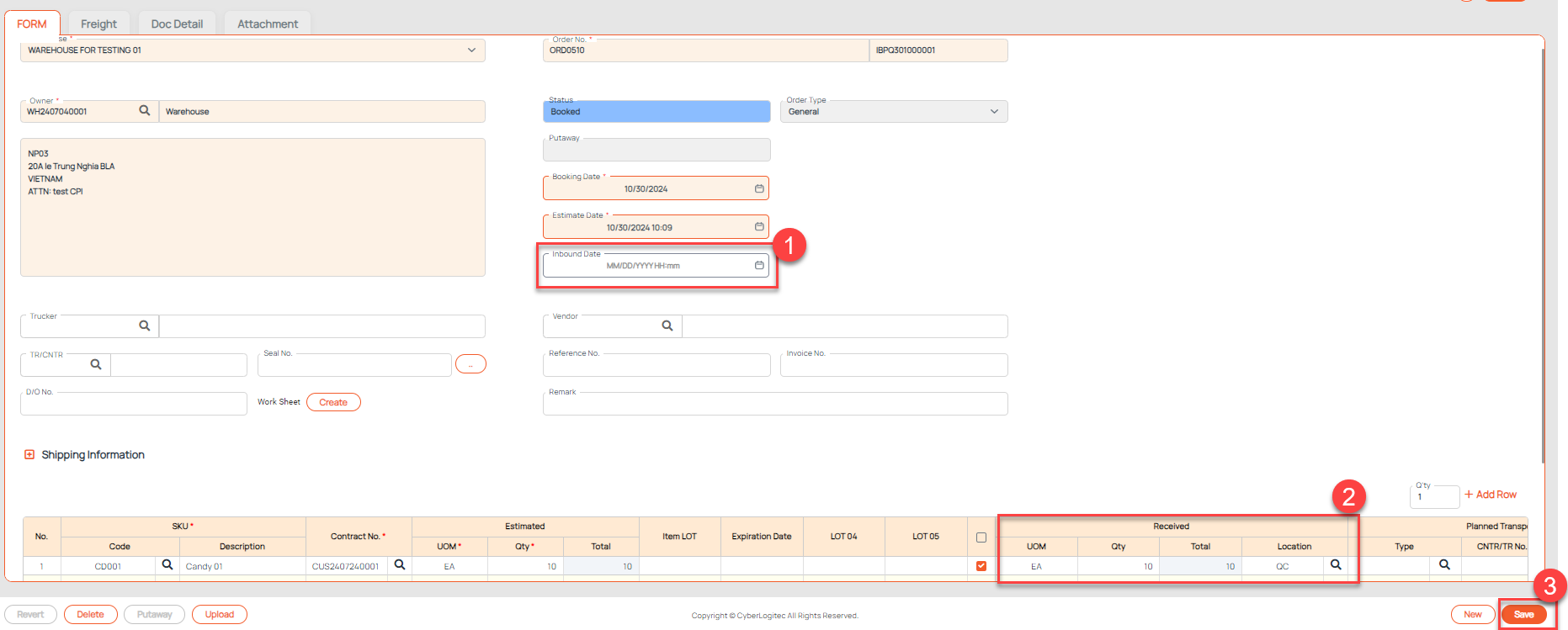
- Input Inbound Date
- Input Received information (UOM, Qty, Location )
- Click the save button
- After saving successfully Booking Status will update to Received and auto-gen Lot ID. The Lot ID is created to differentiate items associated with separate inbound bookings.
¶ Add billing item for booking
¶ 1. Add manual
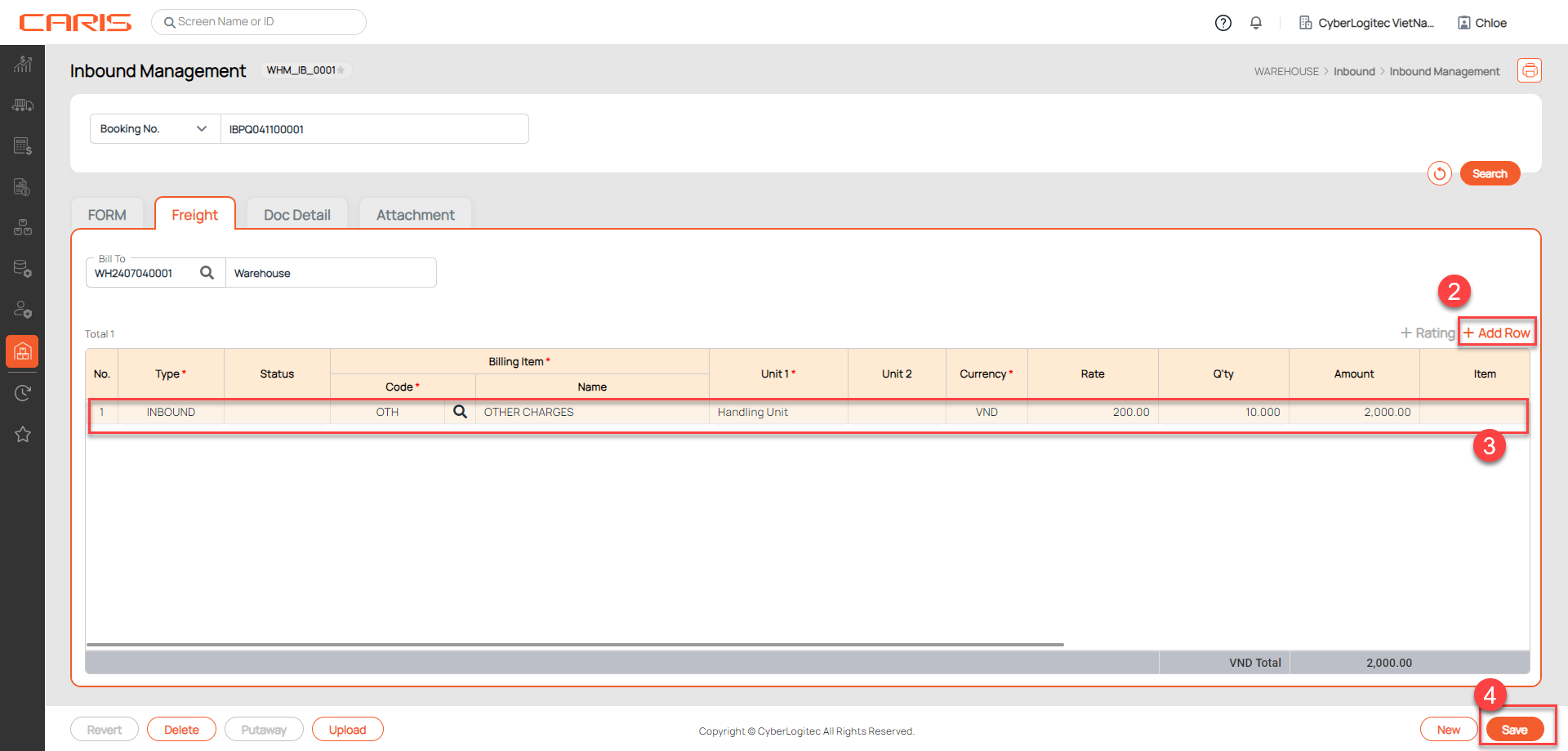
Users can add billing items with amounts on the freight grid. Freight Tab contains billing items that will be charged after an invoice is issued.
- Open the inbound booking
- Click Add button in Freight Tab
- Enter Billing Item information
- Bill To: the person being billed to
- Billing Item: select billing items various on purpose. The selected list of charge codes must meet the condition 'Use Warehouse = Yes', it is set up in the Charge Code setup screen.
- Unit1/ Unit2: unit of billing charge
- Currency
- Amount = Rate x Q'ty
- Closing No. / Closing Date: automatically generated when closing is complete
- Invoice No.
- Click the save button
- After saving successfully Freight Status will update to Freight Saved
¶ 2. Auto rating
The Auto Rating feature allows users to automatically calculate freight charges for items in a booking based on contract rates already set up in Rate In&Out UI.
How to Use Auto Rating:
- Setup in Rate In&Out screen
- Open booking
- Click the rating button in Freight tab: The system will automatically generate the corresponding freight charges for each item according to the contract rates configured in the Rate In/Out UI.
- Click the save button
- After saving successfully Freight Status will update to Freight Saved
¶ Upload the files supplementing
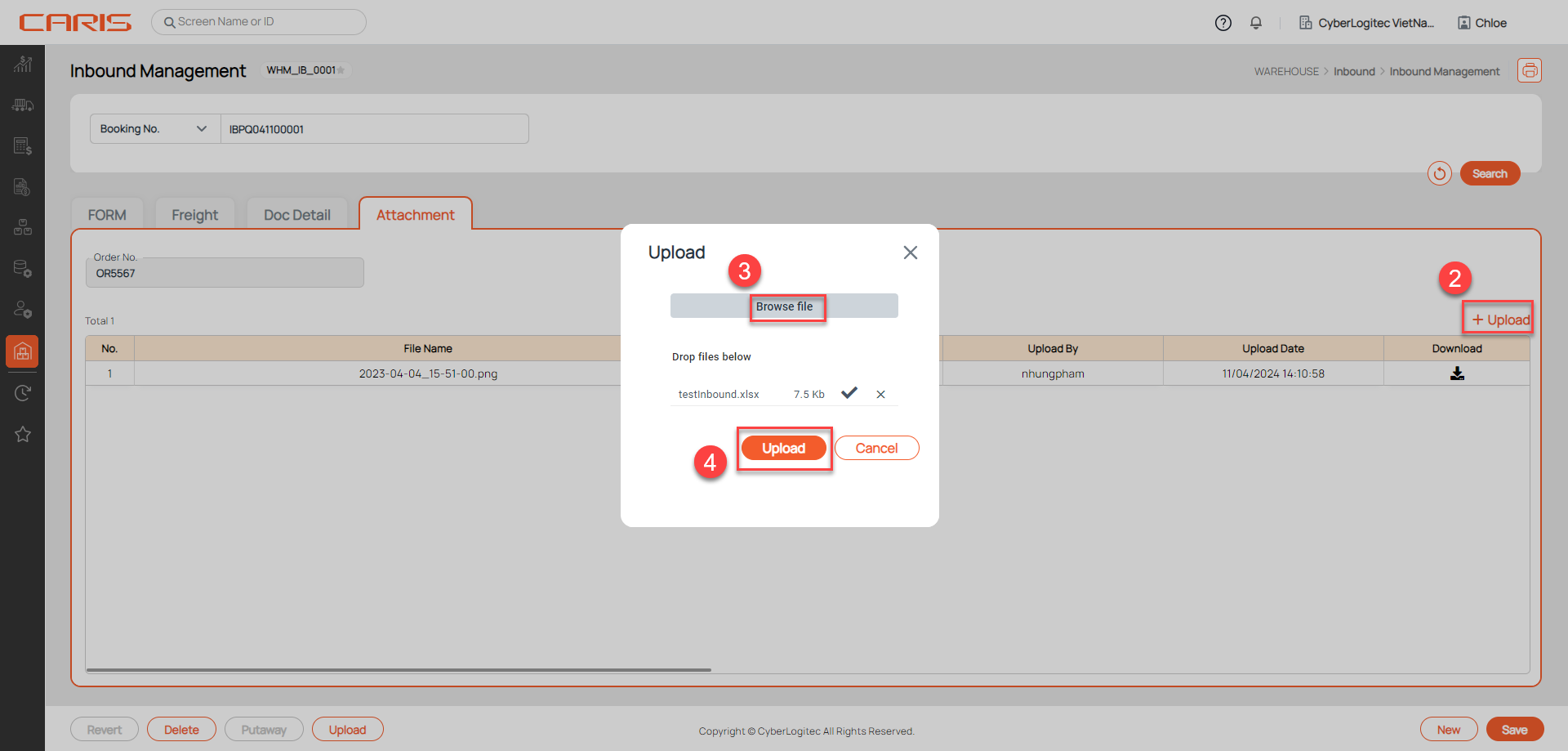
Attachment Tab on screen allows user to upload the files supplementing any item in the inbound booking process.
- All types of file are supported
Step to upload file:
- Open the inbound booking
- Click the Upload button to show the upload popup
- Click Browse file to select the file
- Click Upload button in popup to finish the process upload
¶ Revert received booking
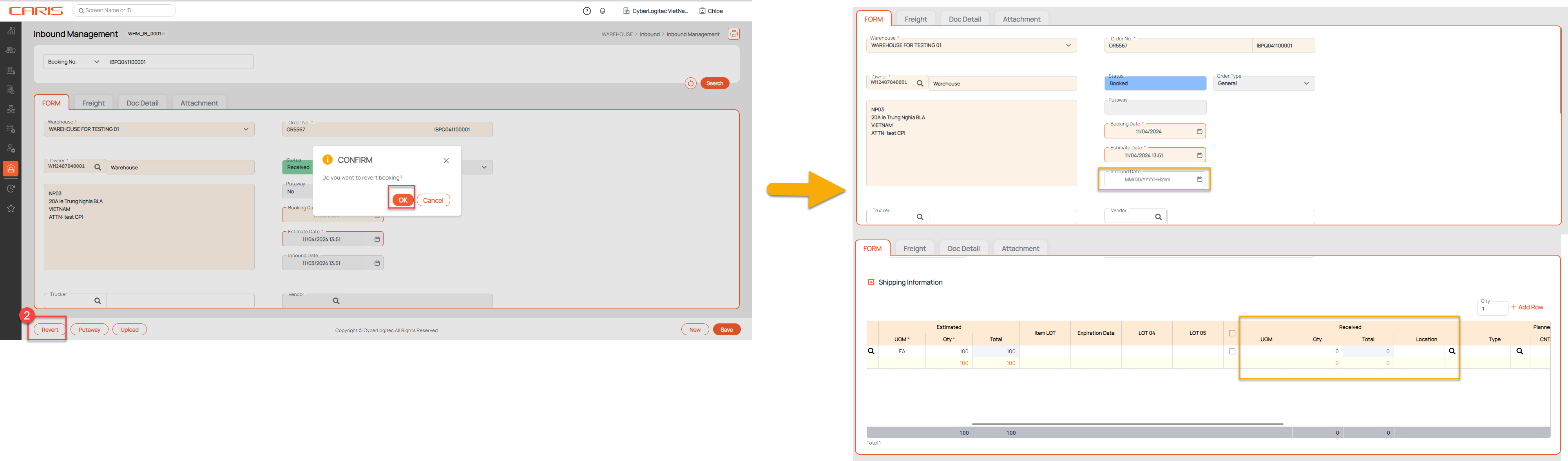
- Open the inbound booking that has status is Received
- Click the Revert button
- After reverting successfully, the status be updated to Booked and clear info inbound date, received qty.
¶ Booking excel upload
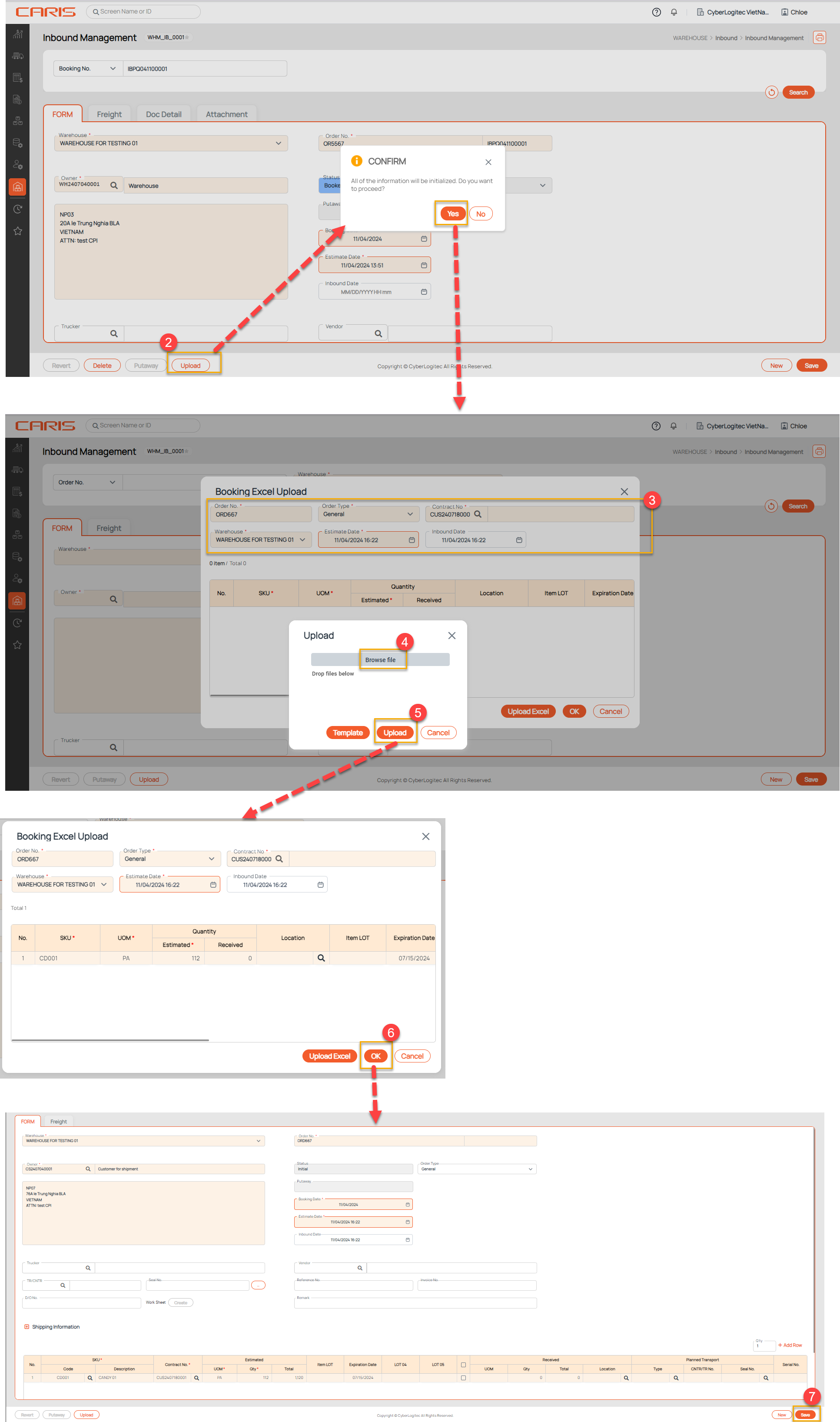
- Open the inbound booking
- Click the upload button to open the upload popup
- Enter information: Order No., Contract No., Warehouse, Estimate date, type.
- Click Browse file to select the file excel
- Click Upload button in popup to show data to grid in popup
- Click OK button in the Booking Excel Upload popup to generate data to Inbound Management screen.
- Click Save button to create the new inbound booking.
¶ Delete the inbound booking
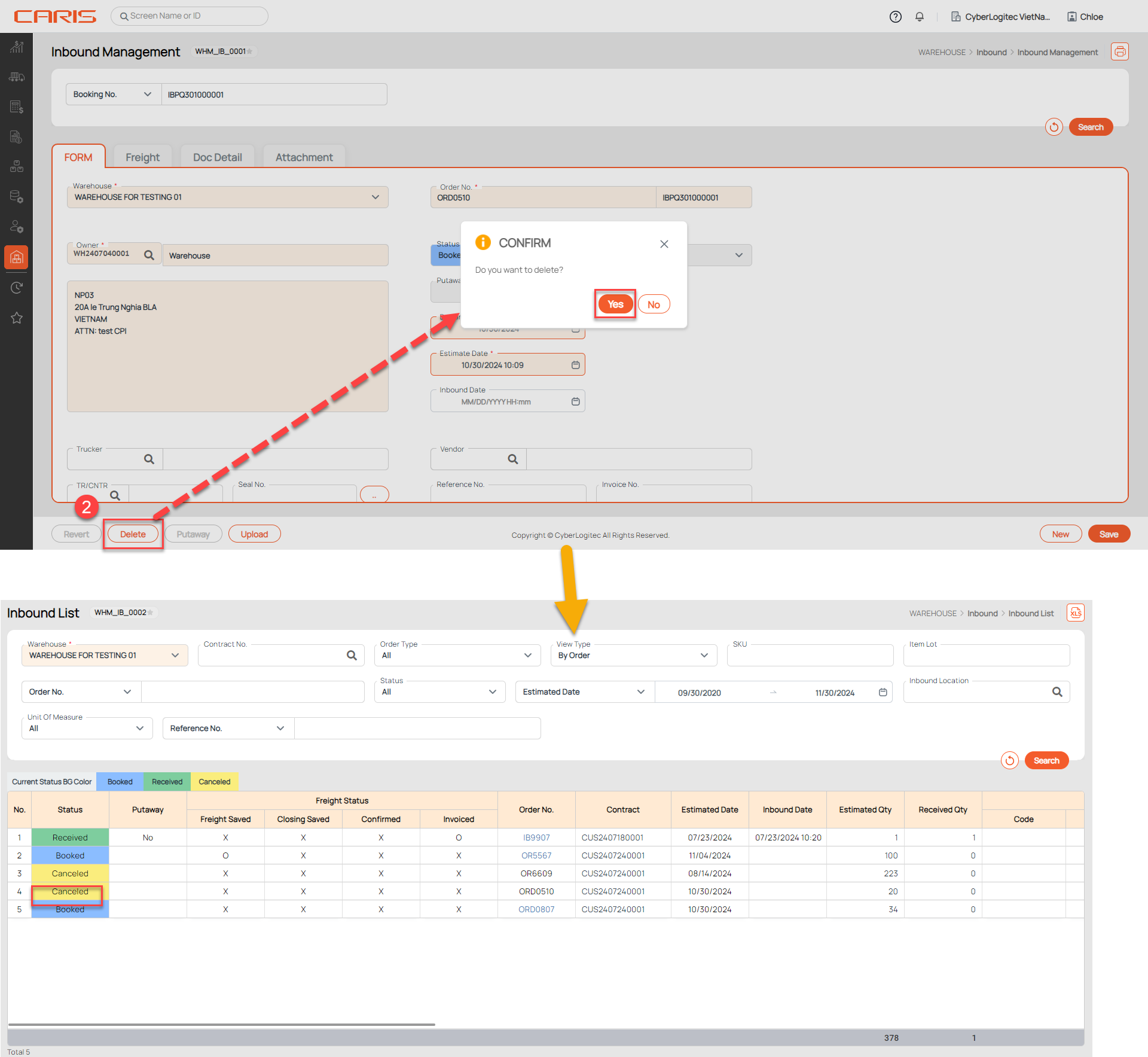
1. Open the inbound booking that has status Booked
2. Click the Delete button.
- After deleting successfully, status updates to Cancel and only retrieve this booking at Inbound List UI.
¶ Print Reports
¶ 1. Inbound OS&D Sheet Report
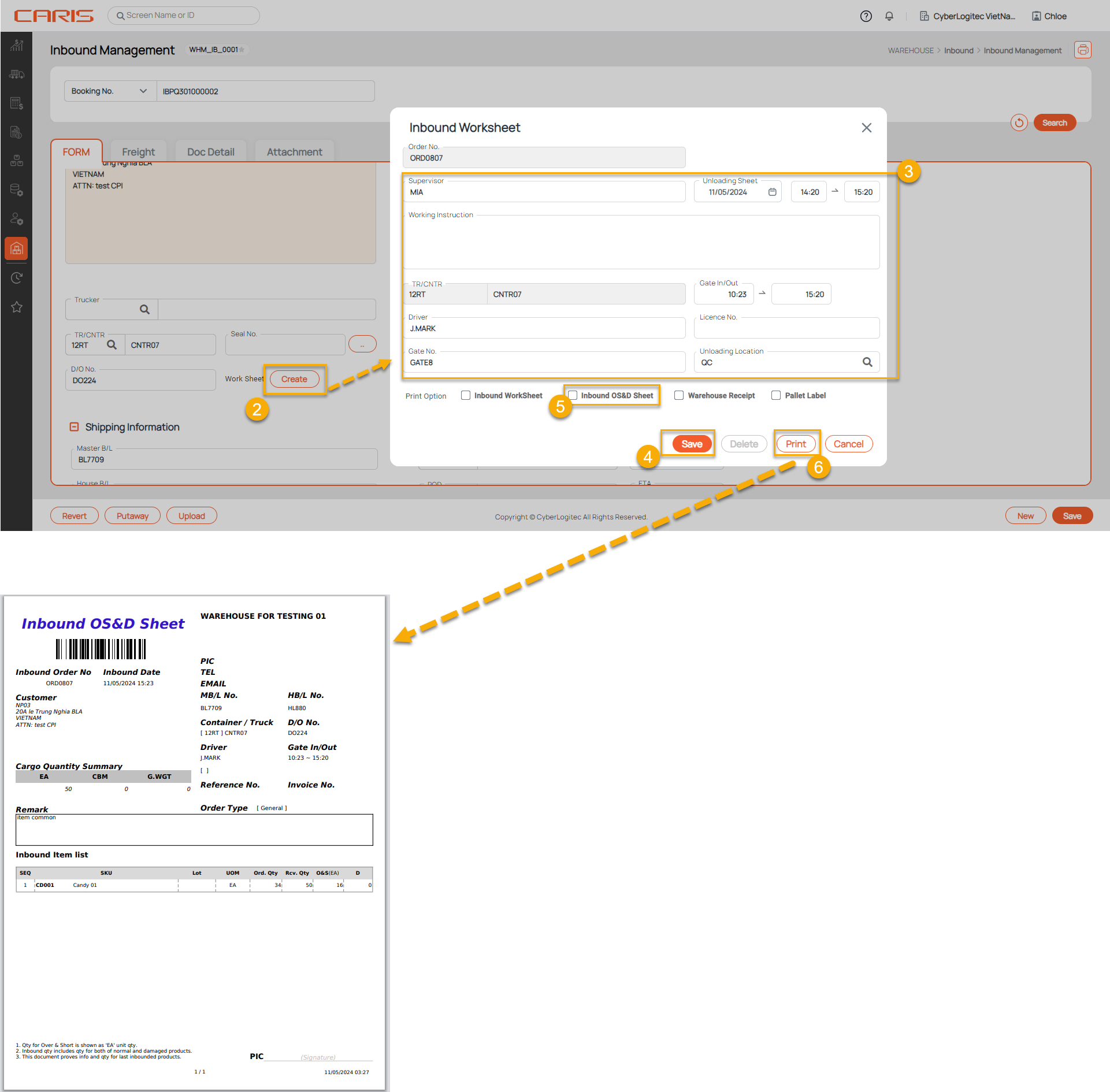
The Inbound OS&D Sheet is a report used to track Over, Short, and Damaged (OS&D) cases for inbound goods.
Step to print report:
- Open inbound booking
- Click the Create Worksheet button to add more information
- Enter information In the Inbound Worksheet popup
- Click the Save button in popup to add information to system
- Select print option is Inbound OS&D Sheet
- Click Print button
Note:
1. Qty for Over & Short is shown as 'EA' unit qty.
2. Inbound qty includes qty for both of normal and damaged products.
3. This document provides info and qty for last inbounded products.
¶ 2. Inbound Work Sheet Report
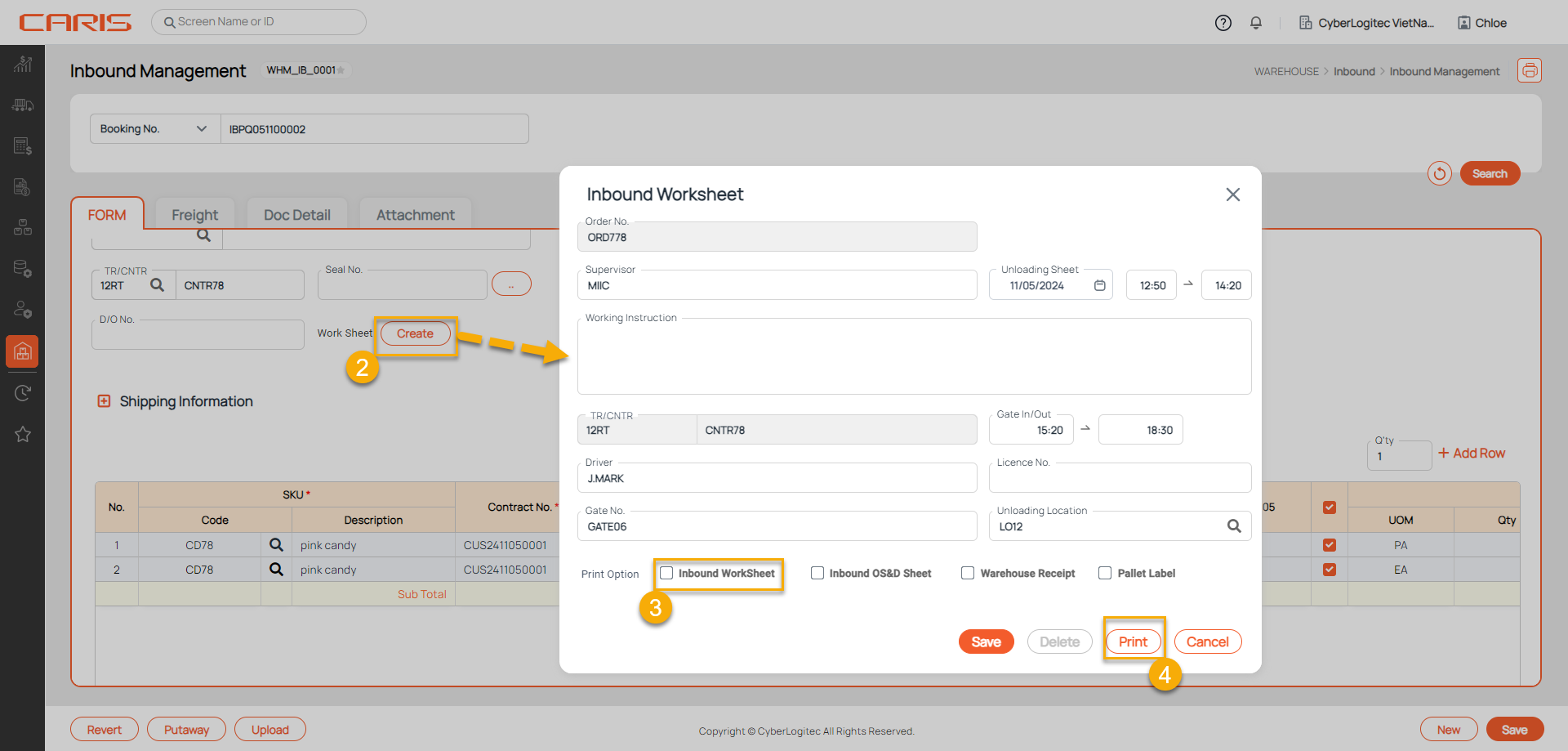
The inbound worksheet report is used to manage and track the inbound process.
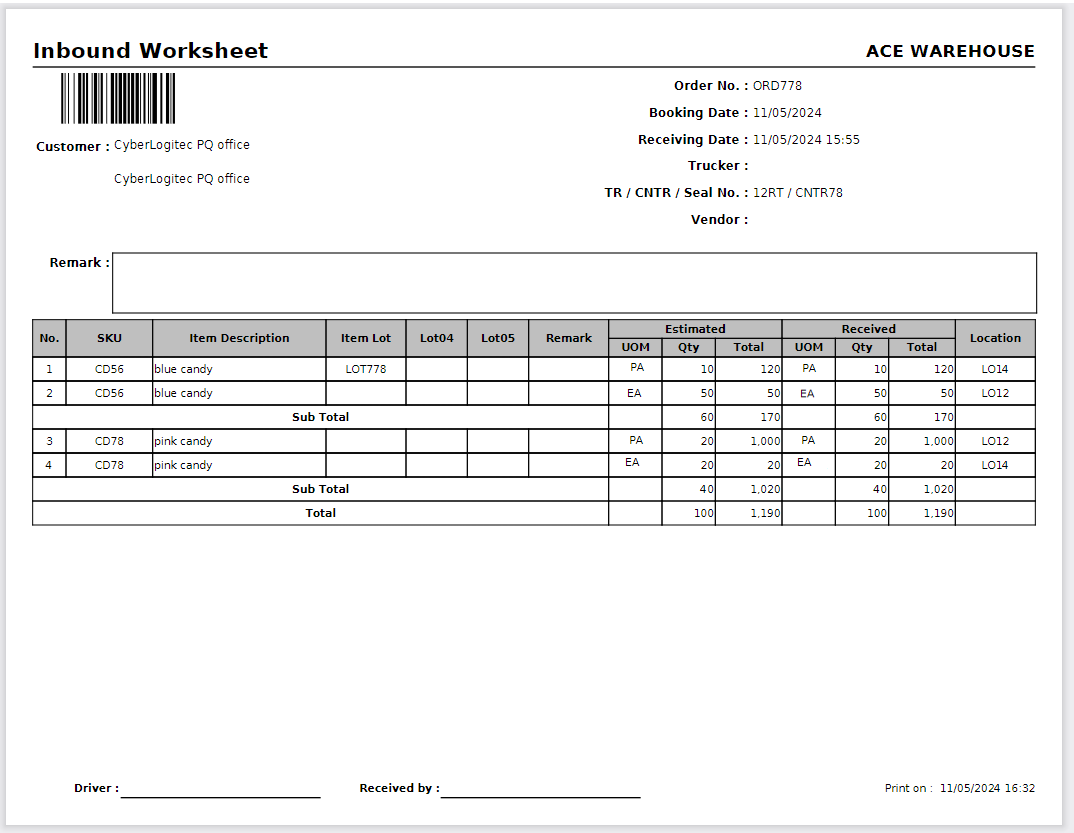
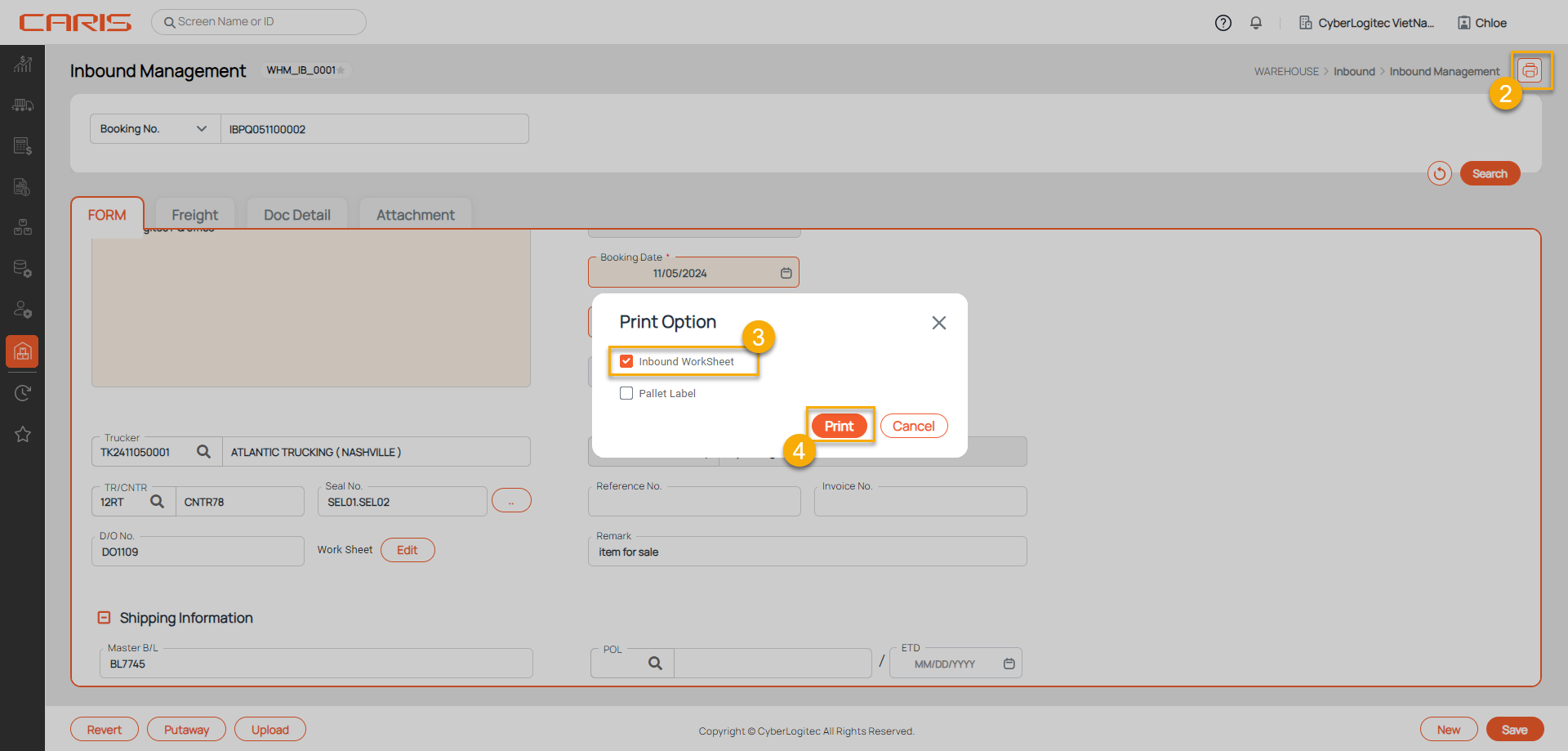
There are 2 ways to print a report:
- Open inbound booking
- Click the Create(Edit ) Worksheet button to open the Inbound Worksheet popup
- Select print option is Inbound Worksheet
- Click Print button
- Open inbound booking
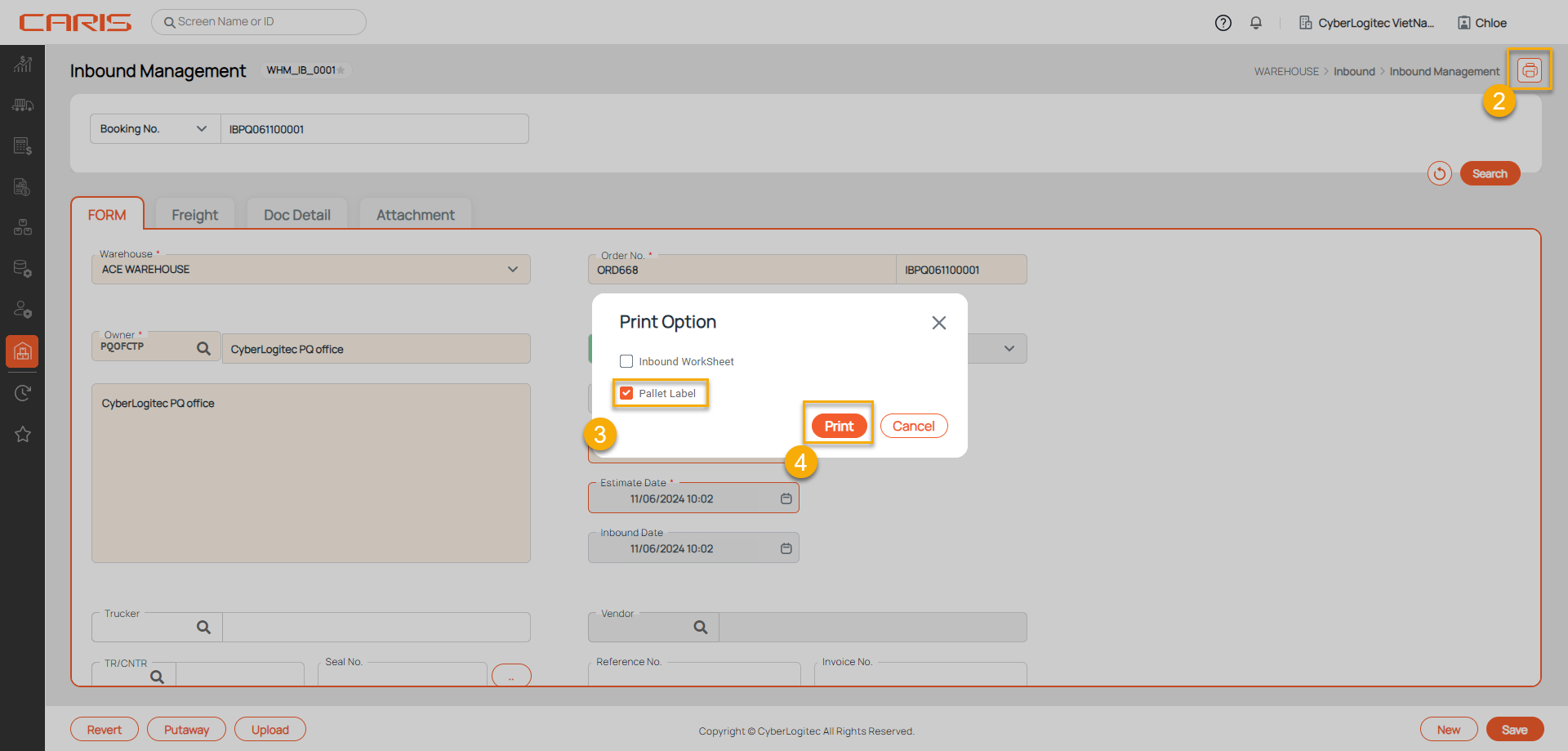
- Click the print icon
- Select print option is Inbound Worksheet
- Click Print button
¶ 3. Warehouse Receipt Report
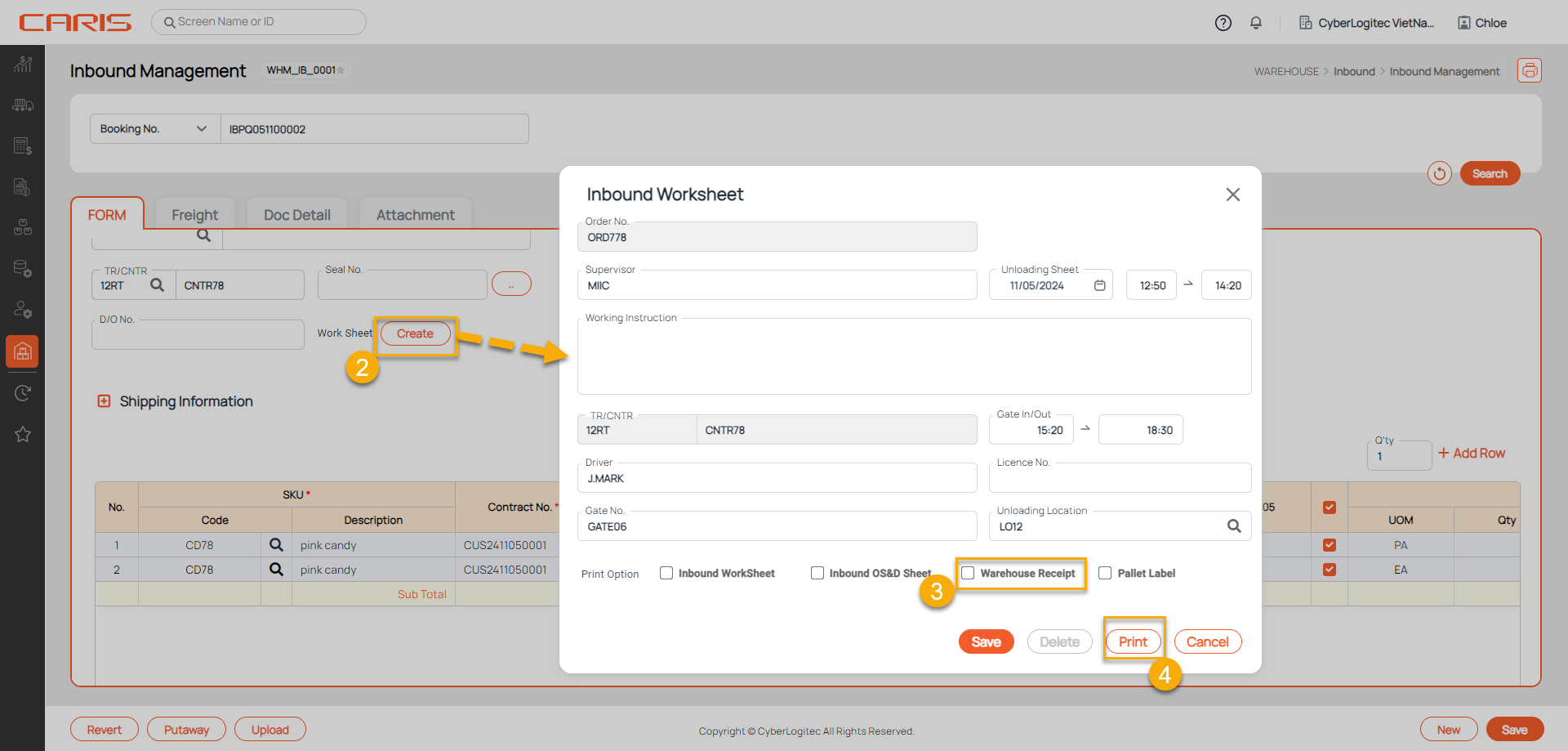
The Warehouse Receipt Report is a document that confirms the process of receiving goods into the warehouse. This report is essential for recording and tracking inbound inventory details.
Step to print report:
- Open inbound booking
- Click the Create(Edit ) Worksheet button to open the Inbound Worksheet popup
- Select print option is warehouse receipt
- Click the Print button
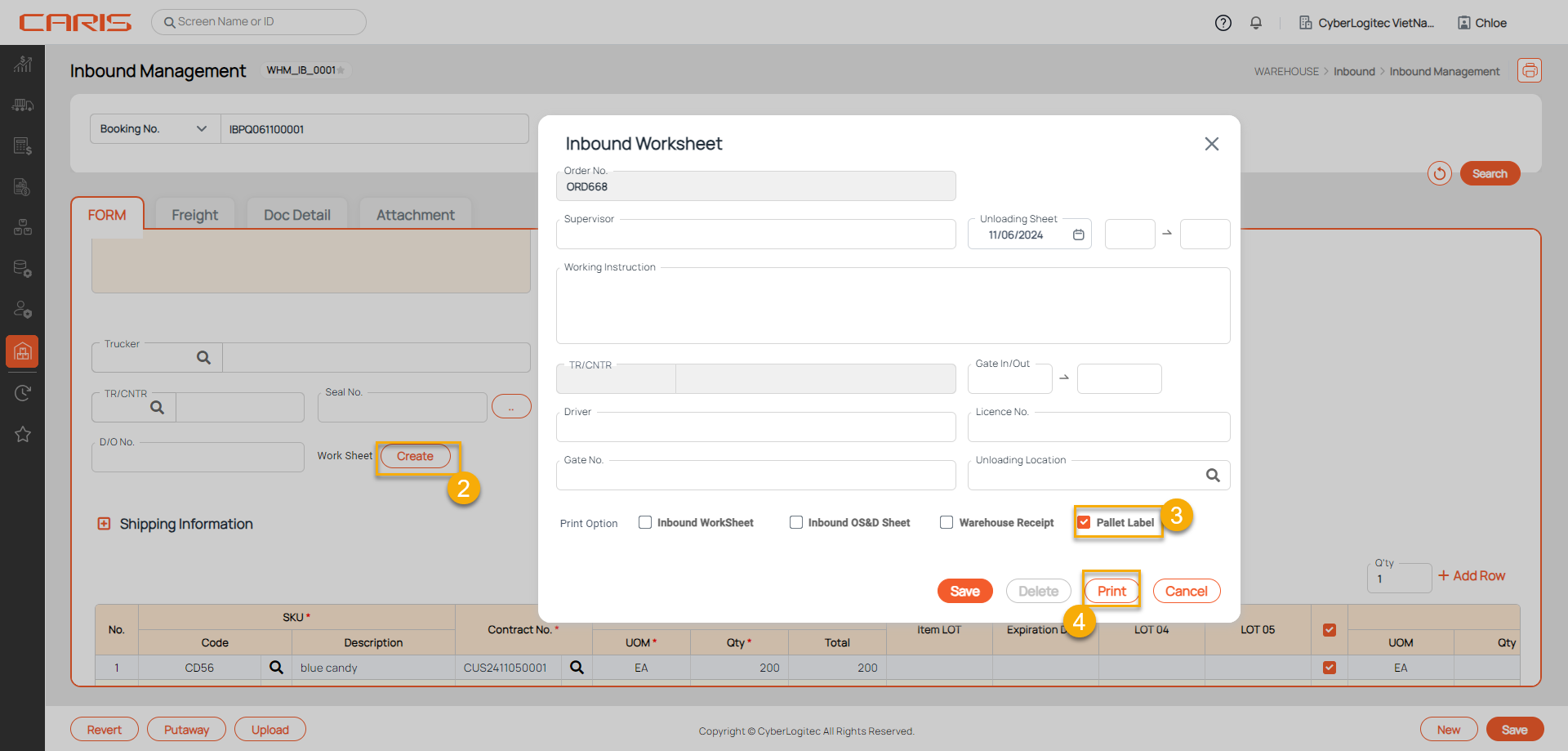
¶ 4. Pallet Label Report
The Pallet Label Report is used to print and manage labels for pallets. These labels contain essential information that facilitates efficient tracking and identification of goods in the warehouse.
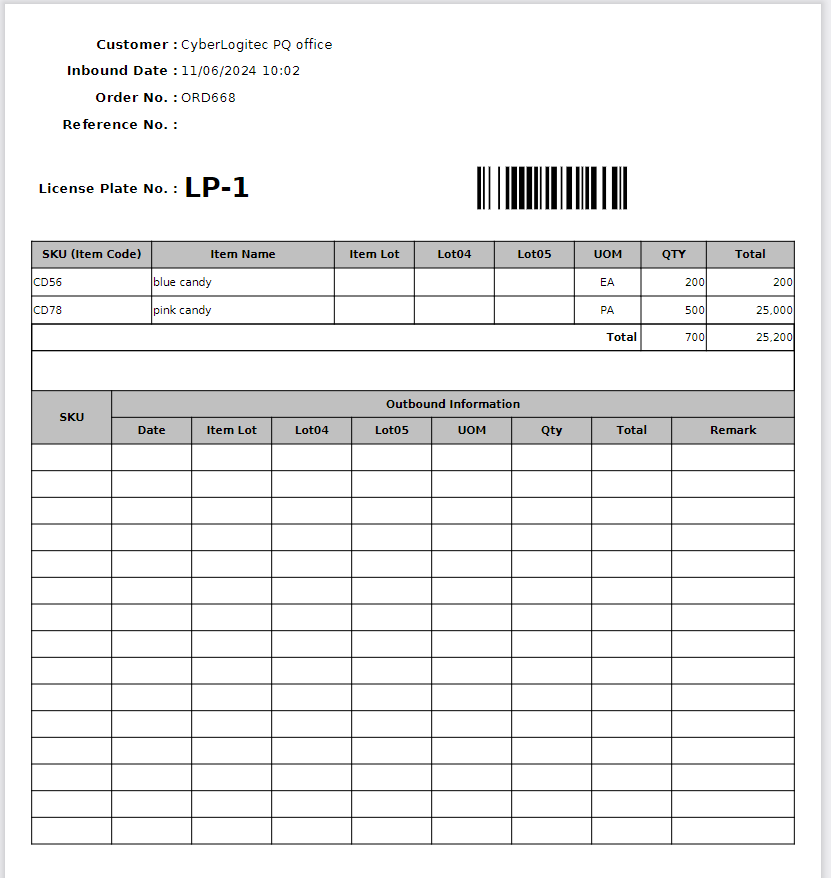
There are 2 ways to print a report:
- Open inbound booking
- Click the Create(Edit ) Worksheet button to open the Inbound Worksheet popup
- Select print option is Pallet Label
- Click Print button
- Open inbound booking
- Click the print icon
- Select print option is Inbound Worksheet
- Click Print button