¶ Introduction
The Holiday & Weekend screen allows you to set up holidays and weekends across different countries and offices. This setup will be linked to Alert and Checklist features.

Navigation:
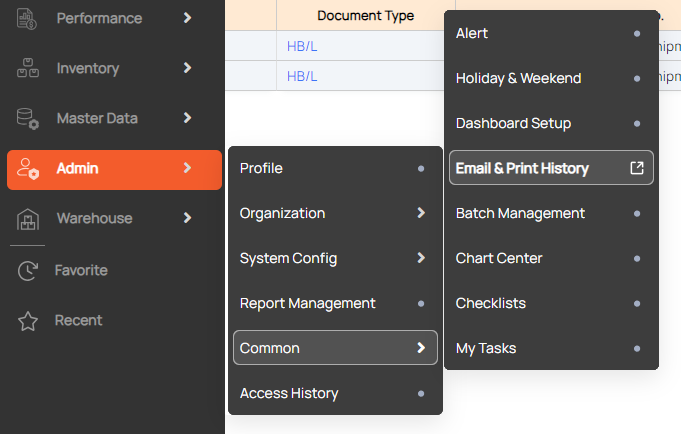
In the Navigation bar, go to Admin > Common > Holiday & Weekend.
¶ Query holiday & weekend
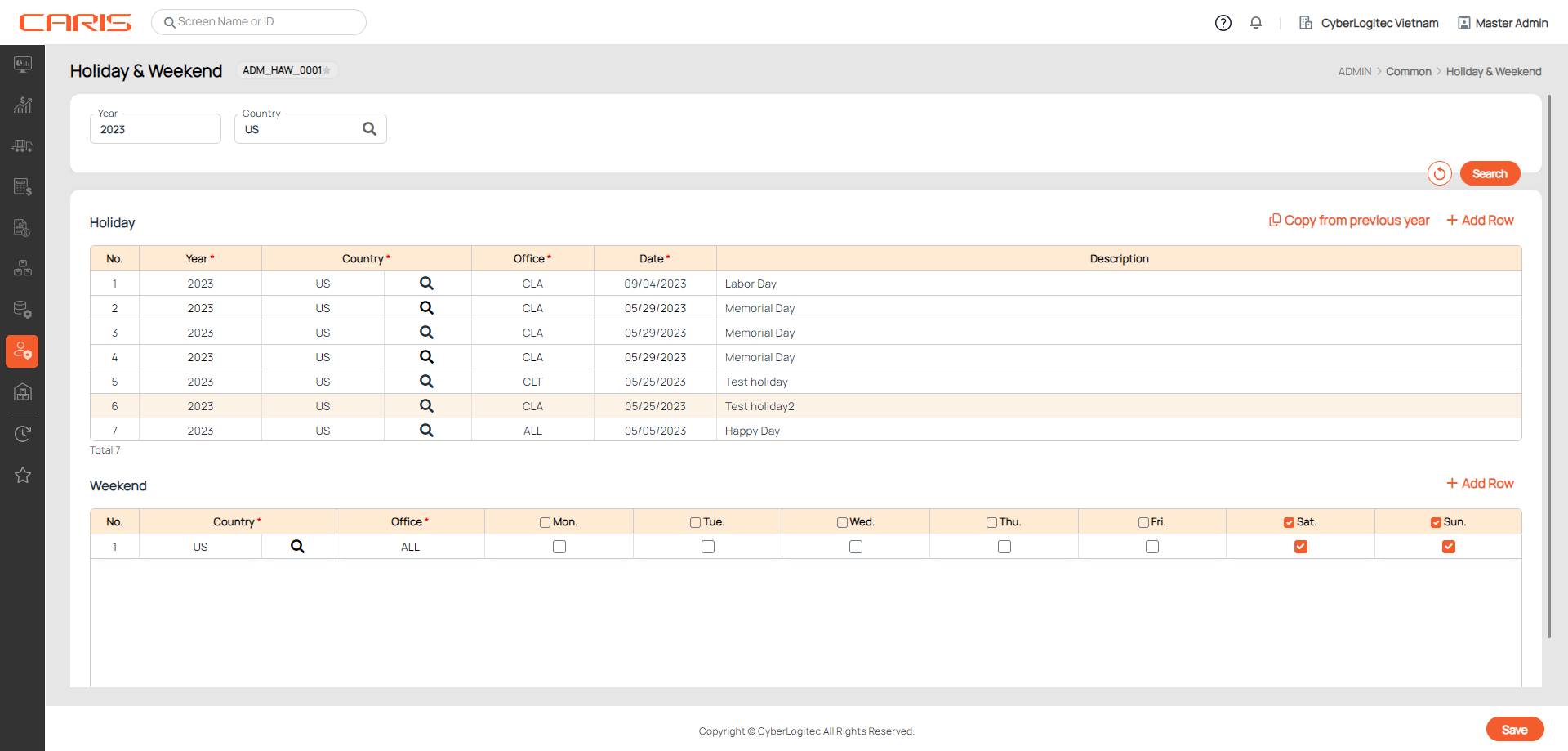
1. In the search bar, you will find the current year loaded by default. Respective records in the Holiday grid underneath is also loaded for this year.

2. To find data by specific year or country, search by either, or both of these fields:
- Year: enter year number
- Country: enter country code manually, or open the popup to select from country code list

3. Click on Search button and respective data will show for both grids.

If there is no matching record, an error message will generate at the top right.
4. To clear search conditions, click on the recurring arrow button next to the Search button.
¶ Create holiday
1. Click on Add row. A blank row will generate.

2. Give inputs to the fields in the table. Fields with an asterisk are mandatory fields and must be filled in order to be saved.
- Year: enter year number. This field will be pre-filled if you already entered the year in the search bar.
- Country: enter country code manually, or open the popup to select from country code list.
- Office: double click to open the dropdown list to choose an office. The office list will be dependent on the country you have selected.
- Date: open the date picker to select date from the calendar.
- Description: provide an additional description to the holiday (optional).
3. Click Save.
Note. If you create holidays for all offices in your company and a holiday for a specific office, the specific office will also get holidays from setups where Office is ALL.
Refer an example below.

The US office will get following holidays: Happy Day, Memorial Day, Labor Day and Special day off in US office.
¶ Copy holidays from previous year
- Let's assume current year is 2050 and holidays for the previous year, 2049, have already been defined.
- In the search bar, enter Year = 2050 and click Search. The Holiday grid will be blank.
- Click on Copy from Previous year. All the holidays from 2049 will be copied to 2050.
¶ Create weekend
- Click Add row.
- Select Country and Office.
- To set a day of the week as weekend, check the respective box.
- Click Save.

Note. If you create weekend for all offices in your company and for a specific office, the specific office will ignore the setup where Office is ALL.
Refer an example below.

The US office gets its weekends on Sundays only, while other offices in the company gets Saturday and Sunday.
¶ Link with other screens
The setup from this Holiday & Weekend screen will impact the Alert function. Refer Alert .
