¶ Introduction
The Closing Other UI allows creating Closing to handle cases outside the standard warehouse operations. These entries consolidate miscellaneous charges defined by users, preparing them for invoicing.
Navigation: Warehouse > Closure > Closing Other Entry
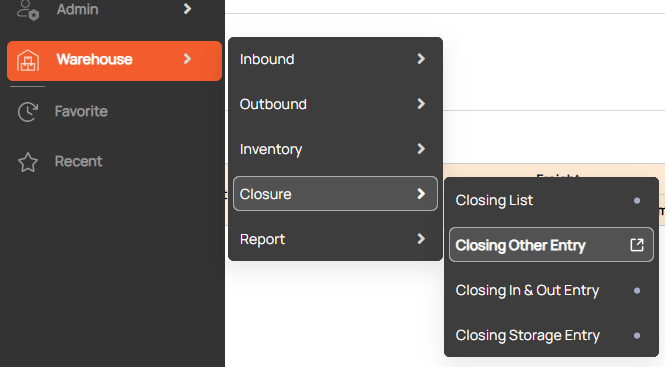
Screenshot
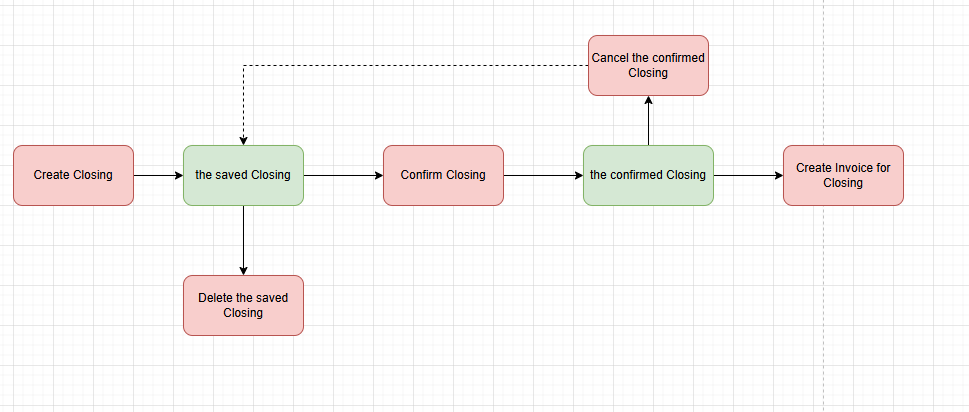
Workflow for Closing:
¶ Create a Closing Other
Steps:
¶ 1. Open Closing Other Entry screen
¶ 2. Enter information about Closing
- Type: Account Receivable (AR) / Account Payable(AP)
- Status: there are 3 kinds of status Saved, Confirmed, and Invoiced
- Closing No.: the code auto-generates after saving the Closing
- Filling No.: Users can manually input the filling number. If no input is provided, the field will display "Auto", indicating that the system will automatically generate the filling number upon clicking Confirm Closing.
¶ 3. Add freight for Closing
- Freight: select billing items various on purpose for each transaction date. The selected list of charge codes must meet the condition 'Use Warehouse = Yes', it is set up in the Charge Code setup screen
- Unit 1/ Unit 2: unit of billing charge
¶ 4. Click the save button
After saving successfully:
- The status will be updated to “Saved” and Closing No. auto-generate.
- The Delete button and the Confirm button will be displayed on the screen.
¶ Confirm a Closing
- Confirming a Closing Other is mandatory before generating an invoice.
- Once confirmed, the data in the closing cannot be modified. However, users can cancel the confirmation by clicking the CFM Cancel button if necessary. After canceling the confirmation, the record can be edited and re-confirmed as required.
- Use the Closing List to track and manage all confirmed closings and generate invoices as needed.
Steps:
- Open the Closing Other has Saved status
- Click the Confirm button
- After saving successfully: can't edit Closing information, the system will automatically generate Filling No. , the status will be updated to Confirmed and the CFM Cancel button will be shown on the screen.
¶ Cancel the Confirmed Closing
Once a closing record has been confirmed, it becomes locked and cannot be edited. However, if changes are necessary, users can cancel the confirmation using the following steps:
- Open the Closing Other has Confirmed status
- Click the CFM Cancel button
- After canceling successfully, the status will be updated to Saved, the save and delete buttons will be shown and the cancel button will be hidden.
¶ Delete a Closing
After deleting successfully, can't retrieve this Closing in the system. Please check carefully before deleting.
Steps:
- Open the Closing Other has Saved status
- Click the Delete button