¶ Introduction
This screen lets you control your account details and set up the content email for when you send an email from the Quotation, Shipment, Master BL, or Accounting screen.
Navigation:
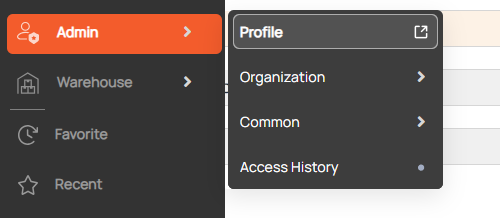
¶ Change your password
- You can go to the Change Password popup via 2 ways (image below):
- In your header section on the top right, click on your username. Click on Change Password in the dropdown.
- In Profile screen, click on the Password button on the bottom right corner.

Once the popup is opened, follow these steps:

2. Enter Current password
3. Input the “New Password” and “Confirm Password” fields
4. Click Save. Your password will be updated.
¶ Manage account information
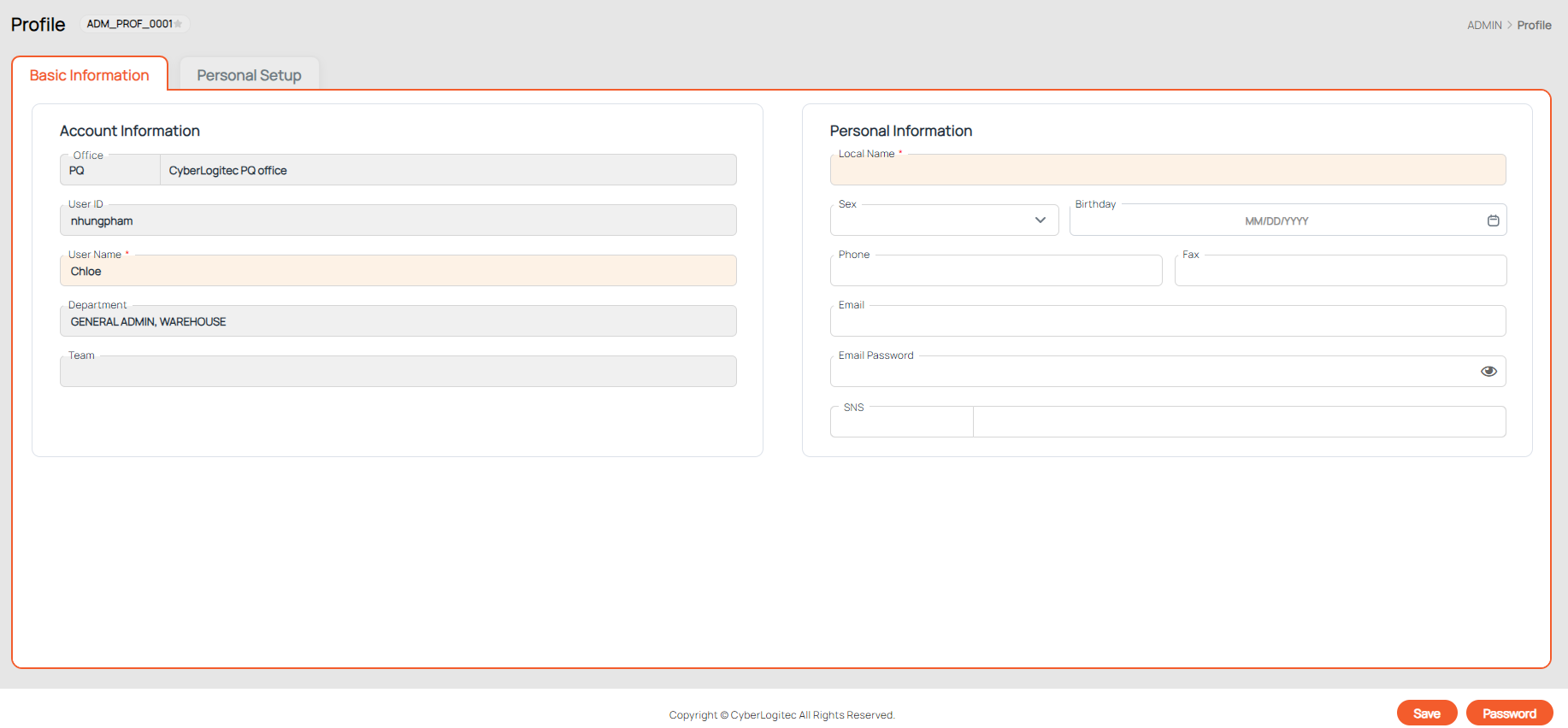
Go to the Admin / Profile / Basic Information tab. Following information can be managed:

- Office: Your office code and name. This field cannot be modified.
- User ID: Your User ID. This field cannot be modified.
- User Name (*): Your username. You must enter at least 3 letters in this field.
- Department: Your department in the company. This field cannot be modified.
- Team: Your team in the company. This field cannot be modified.
¶ Manage personal information
Following information can be managed:

- Local Name (*): The local name you would like to display. You must enter at least 3 letters in English.
- Sex: select your gender.
- Birthday: Your birthday.
- Phone: Your phone number. Your can enter numbers: "0-9", "+", "-", ".","(", ")", and " “.
- Fax: Your fax number. You can only enter numbers in this field.
- Email: Your personal e-mail address.
- Email Password: Password to your personal e-mail address.
- SNS Name: Your social media name.
- SNS ID: Your social media ID.
¶ Set up email template
Go to the Admin / Profile / Personal Setup tab.

¶ I. Email Content Default
The Email Content Default box is where you can create a content template for emails sent from the system.
- Input content into the Email Content Default box.
- Click on the Save button.

¶ II. Email Setup
This section allows you to configure an email template based on the chosen screen, transport mode, and type of document.
- Click Add Row to insert a new row into the Email Setup table.
- Choose a Screen Name. The selected screen is where you can send this email template.

3. Choose Mode: Ocean, Air or Inland.
4. Select Type Report. The Type Report dropdown is based on the Screen Name and Mode you have chosen. Below are some examples.


5. Select Type Mail:
- HTML type means the email can contain multimedia contents (like text or image).
- Text type ****means the email is in plain texts only.
6. Enter your email content template into the Email Content field.
You can also click on the Default button to load the same message from the Email Content
Default box.

7. Input Remark (if needed).
8. Click Save.
Example.
- The Email Content Default and Email Setup are set up per below image:

2. Once you send an email, the system will auto-fill the content


Below is a list of reports/documents that Email setup supports:
|
UI
|
Mode
|
Report/Document can send the mail
|
|
Quotation
|
Ocean, Air, Inland
|
Quotation
|
|
Shipment
|
Ocean Export
|
Bill of Lading(HBL), Booking Confirm, Commercial Invoice
|
|
Ocean Import
|
Bill of Lading(HBL) ,Arrival Notice, Release Order, Delivery Order
|
|
|
Air Export
|
Airway Bill(HBL), Commercial Invoice
|
|
|
Air Import
|
Arrival Notice, Release Order, Delivery Order, Authority
|
|
|
Master BL
|
Ocean Export
|
Manifest, Master Bill of Lading(MBL)
|
|
Ocean Import
|
Manifest, Arrival Notice
|
|
|
Air Export
|
Manifest, Airway Bill(HBL), Master Bill of Lading(MBL)
|
|
|
Air Import
|
Manifest, Arrival Notice, Authority
|
|
|
Accounting
|
Accounting Receivable (AR)
|
Invoice, Proforma Invoice
|
|
Accounting Payable(AP)
|
Payment Request
|
|
|
Debit Note (DN)
|
Debit Note, Proforma Debit Note
|
|
|
Credit Note (CN)
|
Credit Note, Proforma Credit Note
|