¶ Introduction
WH Document Entry screen supports users to collect desired transactions and make an invoice for them.
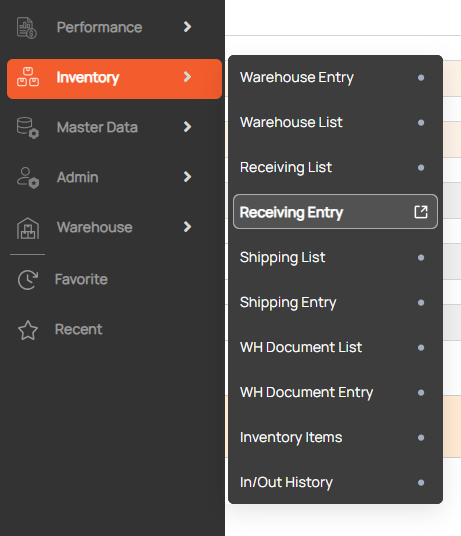
Navigation: Go to Inventory > WH Document Entry

¶ Search the WH Document
- Enter Doc. Filing No. to find a WH Document
- Click search button.

¶ Create the WH Document
1. Click New button
2. Enter master information and create Filling no
Mandatory fields: warehouse, contract, post date.
- Doc Filling No: display ‘AUTO’ text meaning that if user does not input, the system will automatically generate the code.
- Post Date: the date of creating this document- the user can edit
- Contrib. Office (contribute office): the co-operator.
3. Click the Save button to create Doc Filling No.

¶ Add list transaction( Receiving/ Shipping )
- At the document list area , enter the search condition
- Search condition: support user retrieve documents by status( Receiving/ Shipping ) and Booking Date/Receiving Date
- At the document list area ,click Search to retrieve documents of receiving and shipping (both processing and completed)
- In the grid, choose a document for this entry, check in the checkbox
- Click Save button

¶ Create Invoice
- Retrieve a WH document
- Click Accouting(A/R , A/P, D/C) button to open invoice entry
- When click Create Invoice > A/R then open A/R Invoice UI
- When click Create Invoice > A/P then open A/P Invoice UI
- When click Create Invoice > D/C then open D/C Entry UI
