¶ Introduction
Shipping Entry is screen for outbound order. The Order of taking out inventory from the warehouse is applied to specific items, with a defined amount.
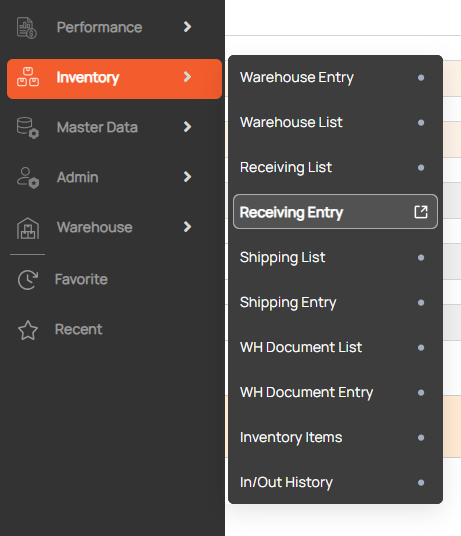
Navigation: Inventory > Shipping Entry

¶ Create WH Shipping info
1. Click New button
2. Enter mandatory filed
- Shipping No.: the code of shipping notice. Shipping Number displays ‘AUTO’ text meaning that if the user does not input, the system will automatically generate the code.
- Shipped (check box): the status of the current outbound report, whether it is shipped (checked) or not (left blank).
- Warehouse: the warehouse where shipping activity is handled.
- Contract No: the contract from which the shipping order takes out items.
- Customer: the party that the transaction is oriented to. The system will fill in the Customer based on the contract selected.
- Shipped Date: actual date of items’ shipping; Shipped Date is enabled to modify when the “Shipped” box is checked.
- Estimated Shipping Date: the forecasted date of item shipment.
- Customer Ref. No: the code of the shipping order was given by the customer to refer in case.
3. Click the Stock Selection button to show the Load Item List popup. Select the items to be shipped.
The Load Items List popup will show the items received in the warehouse:
- Inner Qty: the amount of each (EA Level) item in one selected Unit.
- Qty.: the numbers of Unit will be sent out.
- Total Qty: the sum amount of commodity counted by EA unit.
- P/O No: purchase order that item belongs to.
- Unit – L/W/H: This data is retrieved from Contract Item Entry record yet still can be adjusted as user wishes to.
4. Click save button
NOTE: Tick in "Shipped” to define the actual shipping date and ‘Save’. After that, items’ data in range turns non-modifiable.
¶ Search WH Shipping info
- Enter search condition to find a Shipping
- Click search button.

¶ Print Picking Slip
Click print icon to show a preview of Picking Slip.
