¶ Introduction
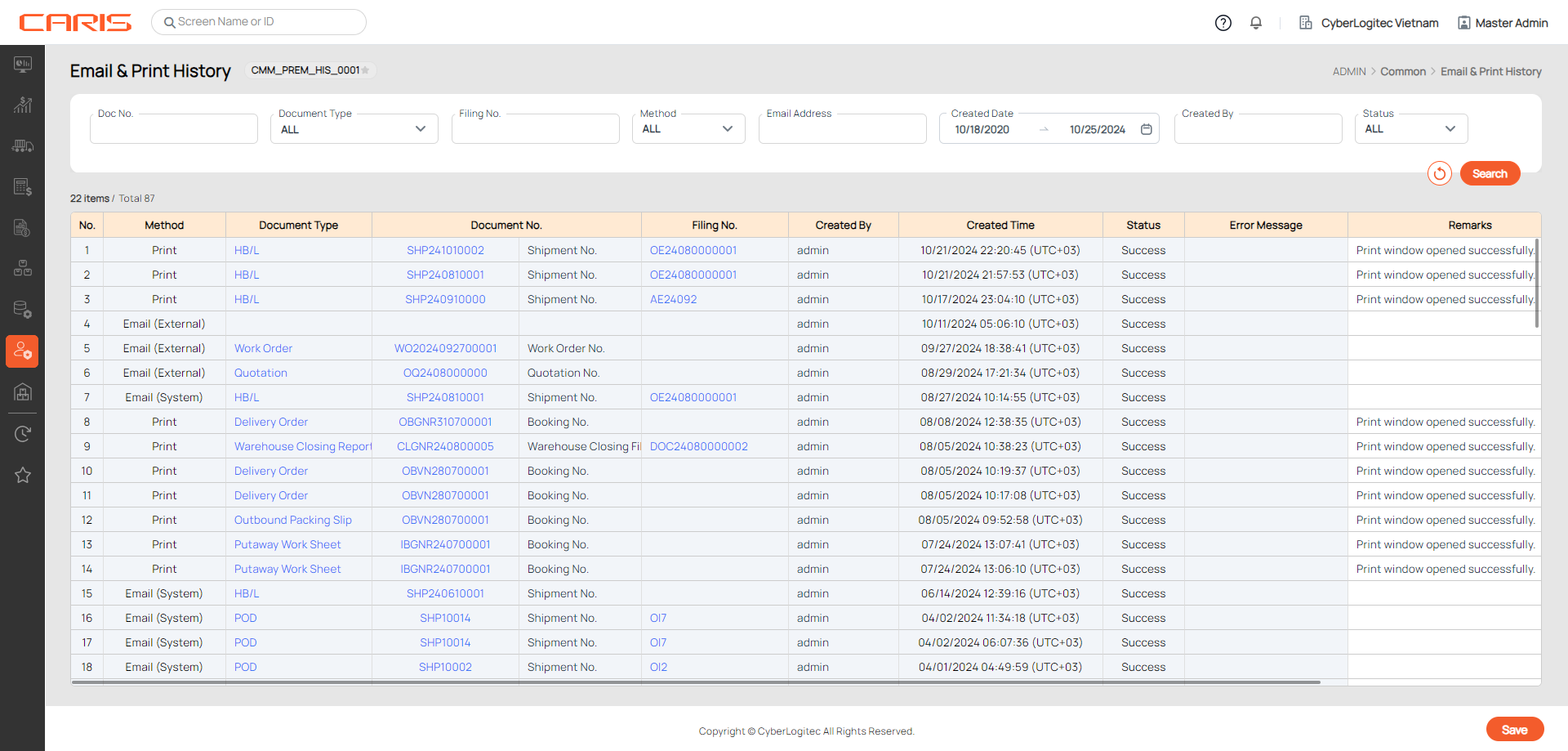
The Email & Print History screen displays a log of all emails and print actions that have been sent from the system. You can use this screen to view the status of any emails or print jobs that you have sent, or add additional remarks if necessary.
Navigation:
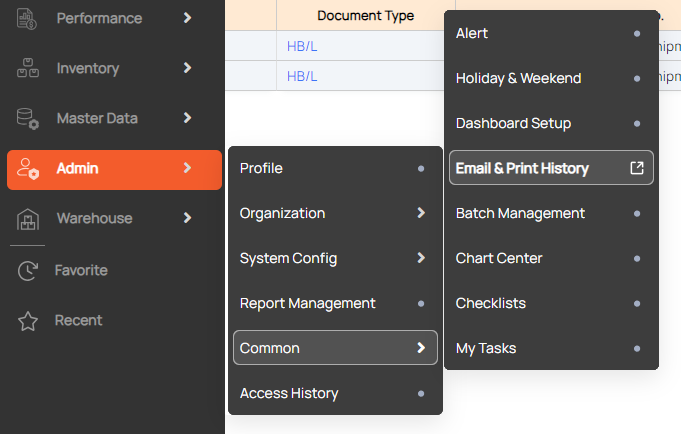
¶ Log email/ print history
- In a certain screen, select a record.
- On the top right of a screen, click on the Printer icon. A popup window will generate.
- Click on the Email button. You can choose to send by either of these methods


- If you choose From system, a popup will generate. Once you have filled in the details and click OK, this event will be logged in Email & Print History screen per below image.

- If you choose From other apps, it will lead to a default email application in your computer.

In the Print & Email History screen, these methods will be logged per below image.

4. To log Print history: click on the Print button. Your browser’s print window will generate. This is when the event is logged into the Print & Email History screen.


¶ View history
1. Following information will display in the data table:
- Method: contains following methods
- Email (System) - to indicate mails sent from the system.
- Email (External) - to indicate mails sent from external applications.
- Document type: type of the document that was emailed or printed.
- Document no.: shows either
- HBL no.
- MBL no.
- Shipment no.
- Quotation no.
- Check no.
- Invoice no.
of the document.
- Filing no.: Filing number of the document.
In some cases, MBL, HBL, Shipment, Invoice or Filing no. can be blank.
- Created by: username of the account that printed or emailed the document.
- Created time: print or email time. The Created time is based on Time zone setup in Office screen.
- Status: error or success.
- Error message: to show error message if Status is Error.
- Remarks: if your Method is Email (External) and the status is Success, Remarks will display this message -

The Remarks can also be edited manually by user.
- Recipient’s email address: to show email address of the recipient if history method is Email.
2. To view the file that was emailed or printed, click on a hyperlink in the Document type column.

The document will open in a popup window. You can also download this file.

Note that if you print the document from this popup window (notice that there is a print button next to the download button), the event won’t be logged into the Email & Print History screen.
3. Each document will also be associated with some key numbers (MBL, HBL, Shipment, Filing or Invoice).
You can click on the hyperlink in each column to view the detailed record.
