¶ Introduction
The D/C Entry screen allows you to register freight and issue the invoice for overseas agents.
Navigation
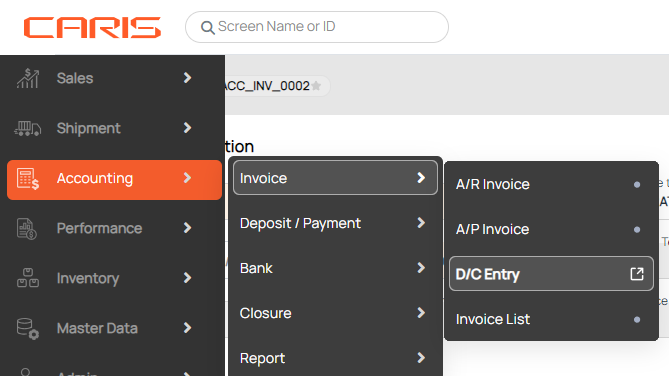
¶ Create D/C entry
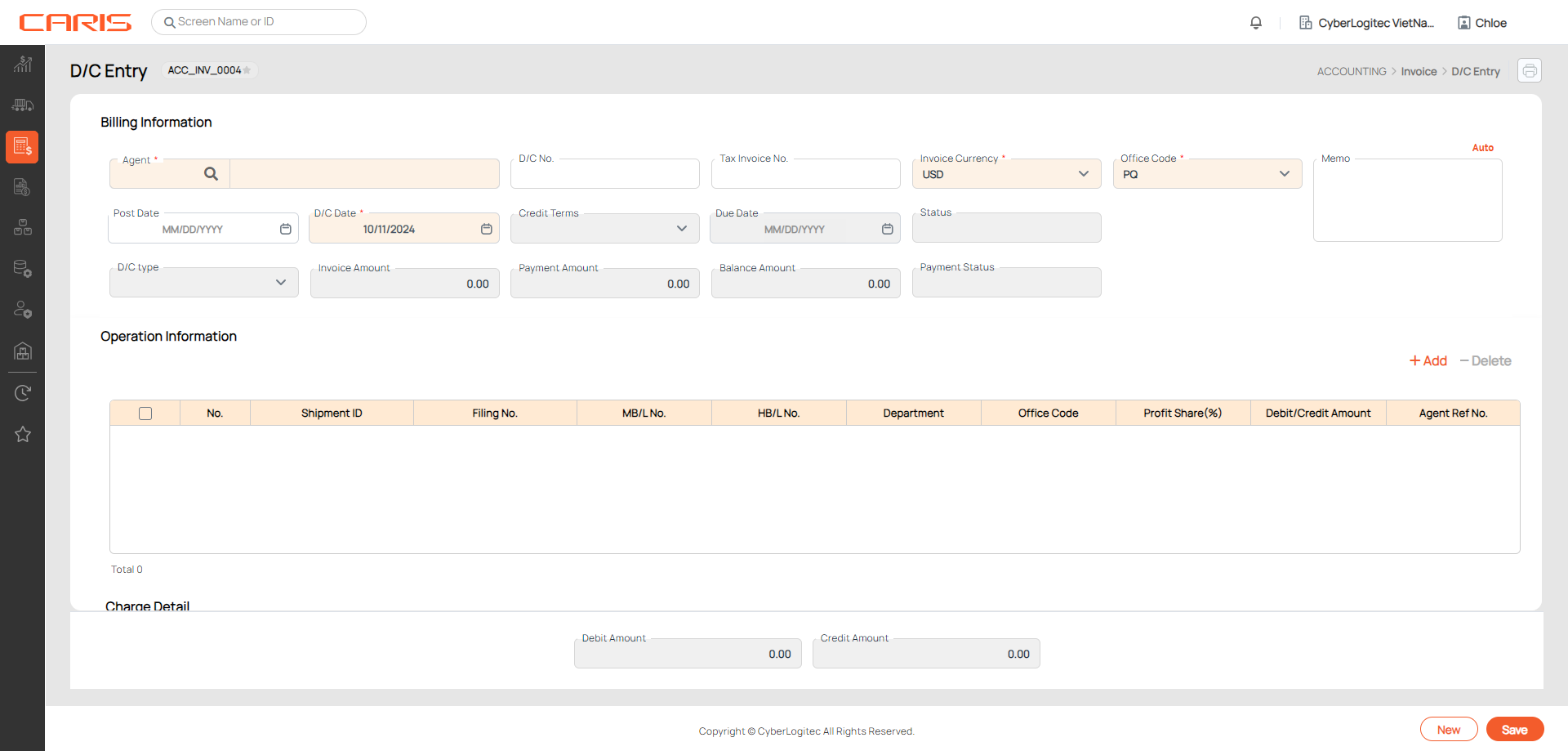
- In Billing Informtion, enter these mandatory fields:
- Agent: click on the search icon to select an agent.
- In Shipment Information:
- Click +Add button and select the type of number (Shipment ID/ Filing No./ Mater B/L No./ House B/L No.) to fill up the table.
- If you select shipment ID or House B/L No., the charges details will come from Freight tab in Shipment Detail.
- If you select Filing No. or Master B/L No., the charges details will come from Freight tab in Master B/L Detail.
- Click +Add button and select the type of number (Shipment ID/ Filing No./ Mater B/L No./ House B/L No.) to fill up the table.

3. Following information is filled in by the system:
Post date & Invoice date are same as setups from Offices screen for the first shipment.
- If the invoice is issued for multiple shipments, you can change these information before posting the invoice.
Agent ref. No & Memo come from Master B/L or Shipment details.
4. In Charge Detail:
- Exchange rate will be updated automatically from invoice exchange rate based on invoice date.
- Click +Add button to add new charges.
- Button +Update Invoice is used for adding charges from Master B/L or Shipment Details for unposted D/C. Any changes will also update in Master B/L or Shipment Details (Freight tab).
- Select the charges code in Profit share column and click +P/S Cal. The system will calculate and add more rows for profit share.
Use Proforma Invoice Process
- Click Save. D/C status will change to Unposted
- You can print a pro-forma debit note or credit note and send to customers for confirmation.
- After getting confirmation, click Post to issue an official Debit note or Credit note. The D/C number will generate per setups in Offices screen. Please note that all information cannot be changed after posting the D/C Entry.
¶ Delete D/C entry
Click on the Delete button to cancel a Unposted Debit/ Credit Note.
¶ Reverse D/C entry
- After posting, an official Debit or Credit Note is issued and cannot be changed or deleted.
- You can click on the Reverse button to cancel this invoice. The transaction will be recorded in the accounting report.
¶ Non-Use Proforma Invoice Process
- No apply for invoice status, created invoice can be used to issue to customer,
- Invoice information can be revised or deleted
- Click Delete to delete invoice without paid amount in the system