¶ Introduction
The A/R Invoice screen allows you to create invoices for operations and general administration. You can link shipment and charge details from Shipment ID, Filing No., Master B/L No. or House B/L No., or issue a new invoice from scratch.
Navigation:
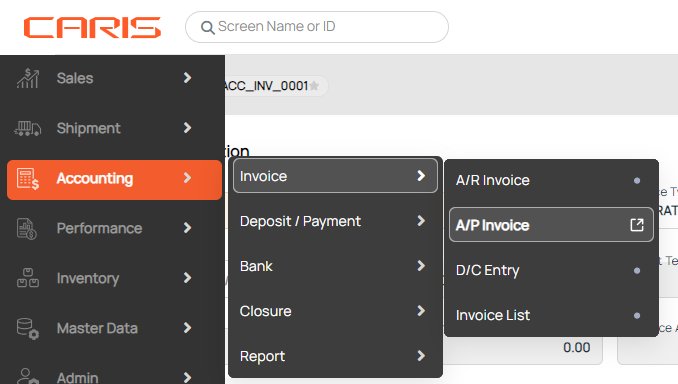
¶ Create Operation invoice
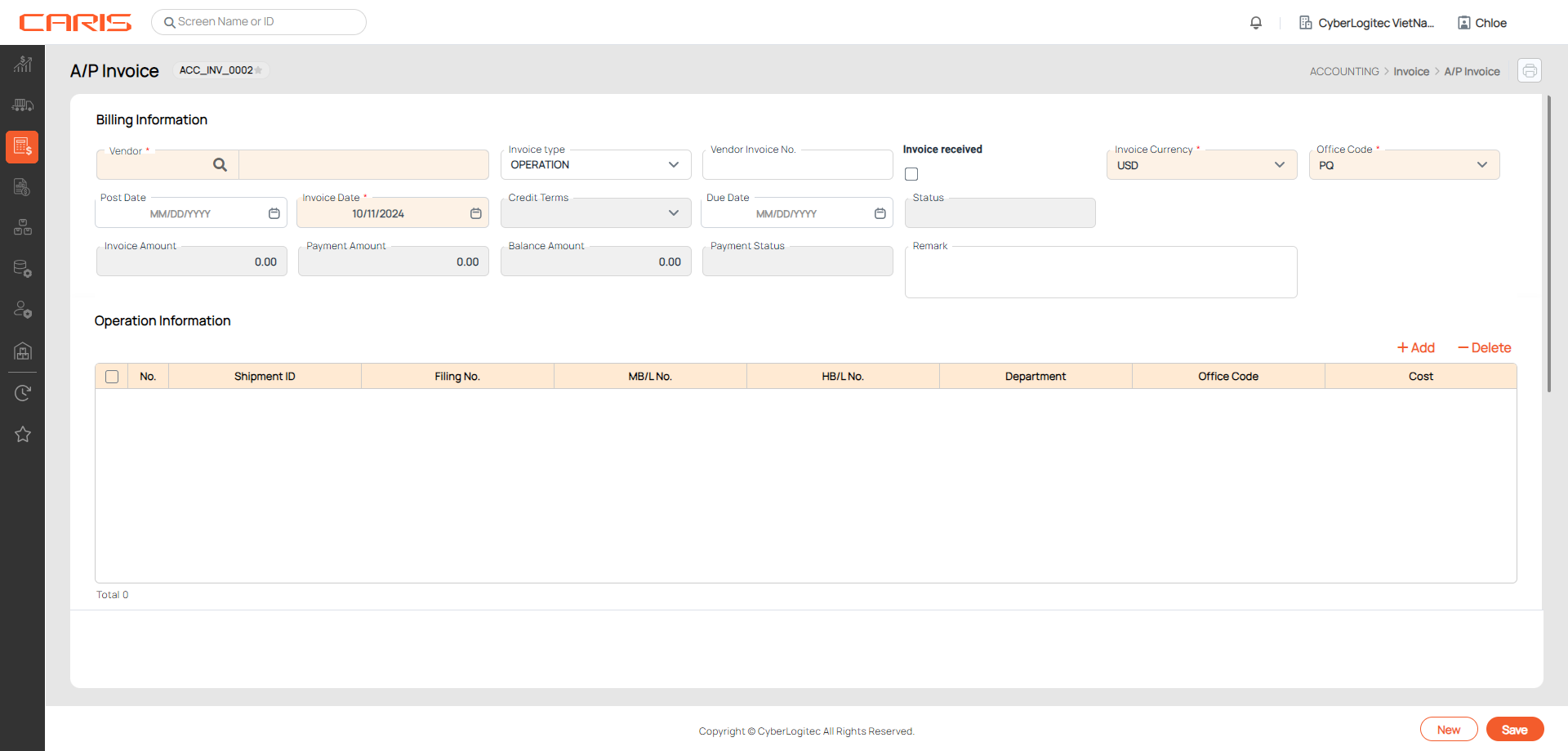
- In Billing Information, enter these mandatory fields:
- Vendor: click on the search icon to select a vendor
- Invoice type: Operation is default
- Invoice currency: local currency is default
- Office code: open the dropdown to select.
- In Shipment Information, Click the +Add button and select the type of number (shipment ID/Filing No./Master B/L No. or House B/L No.) to fill in the table.
- If you select Shipment ID or House B/L No., the charge details will be retrieved from the Freight tab in Shipment Detail.
- If you select Filing No. or Master B/L No., the charge details will be updated by the Freight tab in Master B/L Detail.

3. Following information is returned based on your inputs:
- Post date: If the invoice contains multiple shipments, invoice post date will be based on the first shipment. This setup is decided in the Offices screen. You can also make changes to this date.

- Due date is calculated based on invoice date and credit terms.
4. In Charge Detail section:
- Exchange rate is updated automatically from invoice exchange rate based on invoice date. You can also edit this information.
- Click +Add button in charge details to add more charges. Click Save to save the invoice.

- Button +Update Invoice is to add charges from Master B/L or Shipment Details for unposted invoice. Any changes made will also update in Master B/L or Shipment Details (Freight tab).
Use Proforma Invoice Process:
- Invoice status will be changed to Unposted after save.

- Click on the Post button to issue an official invoice. Invoice status will be changed to Posted. You will be asked to provide a Vendor invoice number.


¶ Create General Admin invoice
- In Billing Information, enter these mandatory fields:
- Vendor: click on the search icon to select a vendor
- Invoice type: select General Admin
- Invoice date: current date is default.
- Due date will be calculated base on invoice date and credit terms.
- In Charge Detail:
- Click +Add button to add new row
- Select Charge code
- Input Rate & Volume
- Exchange rate will be updated automatically based on invoice date. You can edit this information.
If the exchange rate is missing in the invoice, it will show as 0. Once you save the invoice, the system will ask you to add an exchange rate. You can click on the Add Exchange Rate button, then return to the invoice and either cancel or close the popup. The updated exchange rate will be applied to the invoice.
Use Proforma Invoice Process
- Click Save to save the invoice. The status will be changed to unposted. User can still revise the information in this status

- Click on the Post button to issue the invoice. Vendor invoice no. is required. If the post date is blank, default post date is today. The status will be changed to posted.


¶ Delete invoice
Click on the Delete button to cancel a unposted invoice and confirm the deletion.

¶ Reverse invoice
After posting, an official invoice is issued and it can not be changed or deleted. Reverse button is used for canceling this invoice without paid amount and the transaction will be recorded in the accounting report. Reversed date default today or user can update manually.


¶ Non-Use Proforma Invoice Process
- No apply for invoice status, created invoice can be used to issue to customer,
- Invoice information can be revised or deleted
- Click Delete to delete invoice without paid amount in the system
¶ Payment invoice
1. After issuing an invoice, you can make a deposit by clicking on the Payment button. All information in the deposit will be filled automatically.


2. Enter the received amount and click Save to create a payment

¶ Create Profit report
Click on the Profit Report button to check profit for all Master B/L in operation invoices.
